


The Cape Peninsula University of Technology (CPUT) provides a range of online services that help students and applicants manage academic and administrative tasks without always needing to visit a campus. Among the most useful services are CPUT SOS, the application status checker, and CPUT Blackboard, also known as My Classroom. If you are searching for CPUT SOS, SOS CPUT, CPUT status check, or CPUT Blackboard, this guide explains where to find the official services and how to use them. The information is intended for students, applicants and members of the public in South Africa who need access to CPUT’s online systems. The official university website is cput.ac.za. CPUT’s student section currently lists Student Online Services (SOS), My Classroom/Blackboard, examination results, student email and other important student resources among its quick links. (Cape Peninsula University of Technology)
What Is CPUT SOS?
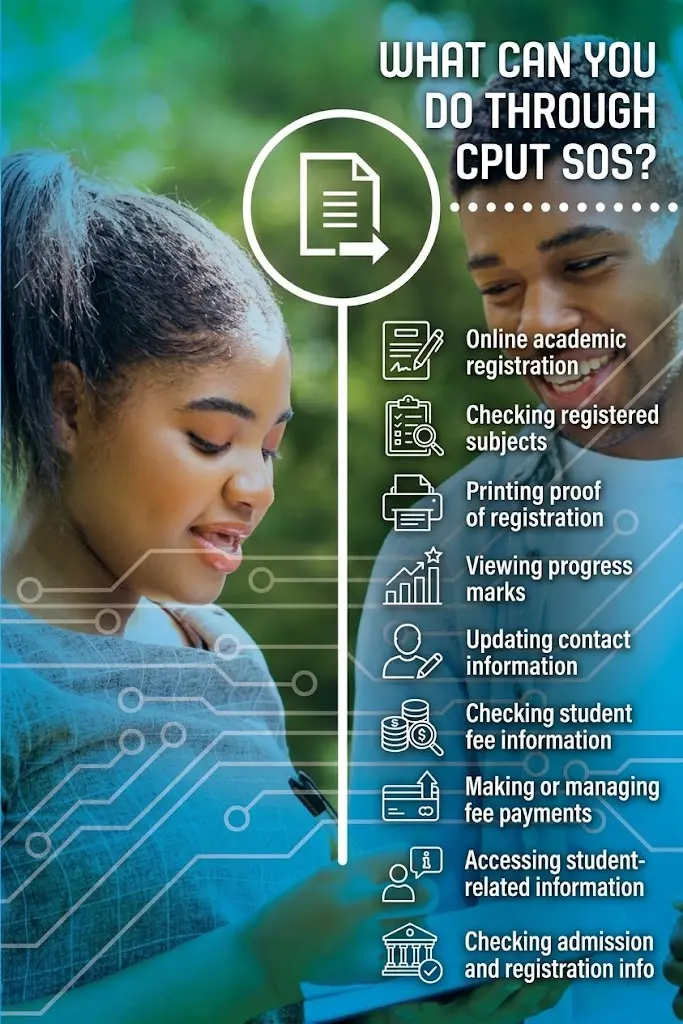
CPUT SOS, or Student Online Services, is CPUT’s online self-service platform for accessing important student information and completing selected academic and administrative tasks. According to the official CPUT SOS page, students can use the system to register online, check registered subjects, print proof of registration, view progress marks, update contact information, and check or pay fees online. (Cape Peninsula University of Technology) This makes SOS CPUT an important service for students who need to manage their university information online. Instead of treating CPUT student services as only a login page, students should think of it as a central self-service area for several parts of their student journey.for more information visit my home page.

What Can You Do Through CPUT SOS?
The services available through CPUT SOS can include:
The exact options available can depend on your student record and current CPUT processes.
For students who are preparing for registration, CPUT’s official registration information is particularly useful because it directs students to the university’s online systems for registration-related tasks. (Cape Peninsula University of Technology)
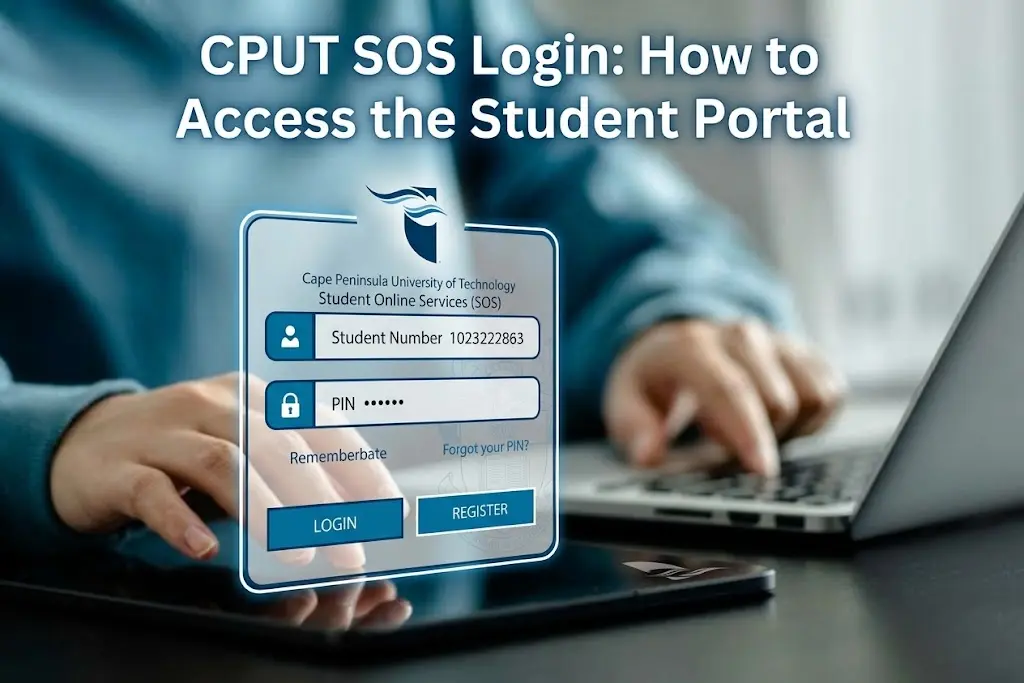
CPUT portal login: How to Access the Student Portal
If you want to access CPUT SOS, always begin with the official CPUT website rather than relying on third-party login pages.
Step 1: Open the Official CPUT Website
Go to the official Cape Peninsula University of Technology website:
The CPUT website provides access to the university’s student services and official information. The current student page lists Student Online Services (SOS) as an official student quick link. (Cape Peninsula University of Technology)

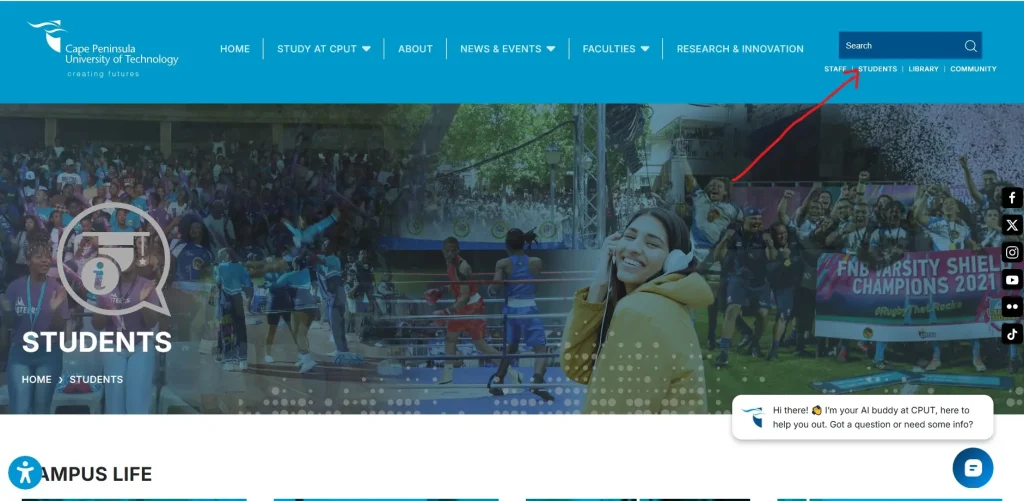
Step 2: Open the Students Section
From the CPUT website, open the Students section.
You can also go directly to the official student page:
Look for the Student Online Services (SOS) option in the student quick links.
Step 3: Select Student Online Services
Click Student Online Services (SOS).
This takes you to the official CPUT SOS information and login area. CPUT describes SOS as a service that gives students access to their student data from anywhere. (Cape Peninsula University of Technology)
Step 4: Open the SOS Login
Select the available Log in to SOS or self-service portal option. You will then be presented with the relevant CPUT login screen.
Step 5: Enter Your Student Credentials
Enter the information requested by the official CPUT student services login page. Depending on your account, this may include your student number and SOS PIN. Do not share your student credentials with another person. If you are using a public or shared computer, make sure you log out after completing your work.
Step 6: Open the Required Student Service
After successfully logging in, select the service you need. For example, you may need to check registration, registered subjects, marks, student information, fees or proof of registration.
CPUT portal login PIN and Login Problems
One of the most common problems students encounter with CPUT portal login is not having the correct PIN. CPUT provides official information for students who need to retrieve or obtain their SOS PIN. Its registration-related FAQ also explains that returning students can use the university’s official website to obtain their student number and SOS PIN through the relevant services. (Cape Peninsula University of Technology)
If You Do Not Know Your SOS PIN
Start from the official CPUT student website rather than using an unofficial website.
CPUT Student Online Services
The official CPUT page provides access to the SOS self-service portal and related registration information. (Cape Peninsula University of Technology) If you are a non-registered student and need help obtaining your PIN, CPUT also provides an official PIN-retrieval service. The university’s information indicates that the process can require details such as your student number, ID/passport number and name. (Cape Peninsula University of Technology)
If CPUT portal login Is Not Accepting Your Details
Before contacting CPUT, check the following:
Do not send your SOS PIN or password to people offering unofficial login assistance.
CPUT Status Check 2026
The CPUT status check is different from CPUT SOS. If you have submitted an application to the Cape Peninsula University of Technology, you can use CPUT’s official application tracker to check the progress of your application.
CPUT Status Check – Official Application Tracker
CPUT explains that applications are loaded onto its system and that an SMS acknowledgement is sent once an application has been received. Importantly, CPUT states that this acknowledgement is not an acceptance notice. (Cape Peninsula University of Technology)
This distinction is important for anyone searching for CPUT status check information.
How to Check CPUT Application Status
Step 1: Open the Official CPUT Status Checker
Go to the official application tracking page:
Use the official CPUT website whenever entering identification or application information.
Step 2: Enter Your Identification Details
The CPUT tracker provides fields for applicant information. Depending on the option available to you, you may use:
CPUT states that the tracker works with the ID number used on the original application or a valid student number. (Cape Peninsula University of Technology)
Step 3: Select “Check My Application”
After entering the required information, select Check My Application. The system can then retrieve the application information associated with your details.
Step 4: Review Your CPUT Status
The tracker can display information such as:
CPUT also notes that successful applicants receive an SMS notification of acceptance. (Cape Peninsula University of Technology)
Step 5: Follow Any Additional Instructions
If you receive an acceptance or conditional acceptance, carefully read the instructions provided by CPUT. A conditional acceptance may still require additional documents or steps before admission is finalised. CPUT’s application tracker specifically warns that conditionally accepted applicants may need to submit documents to finalise admission. (Cape Peninsula University of Technology)
CPUT Status Check vs CPUT portal login
It is easy to confuse the two services because both relate to your university information, but they have different purposes. CPUT status check is primarily useful for applicants who want to track an application and view admission-related information. CPUT portal login is intended for student self-service activities, including registration, registered subjects, proof of registration, progress marks, contact information and fees. (Cape Peninsula University of Technology) If you are waiting to find out what happened to an application, start with the CPUT status check. If you are already a student and need to manage registration or student information, CPUT student services is generally the relevant service.
CPUT Registration Through SOS
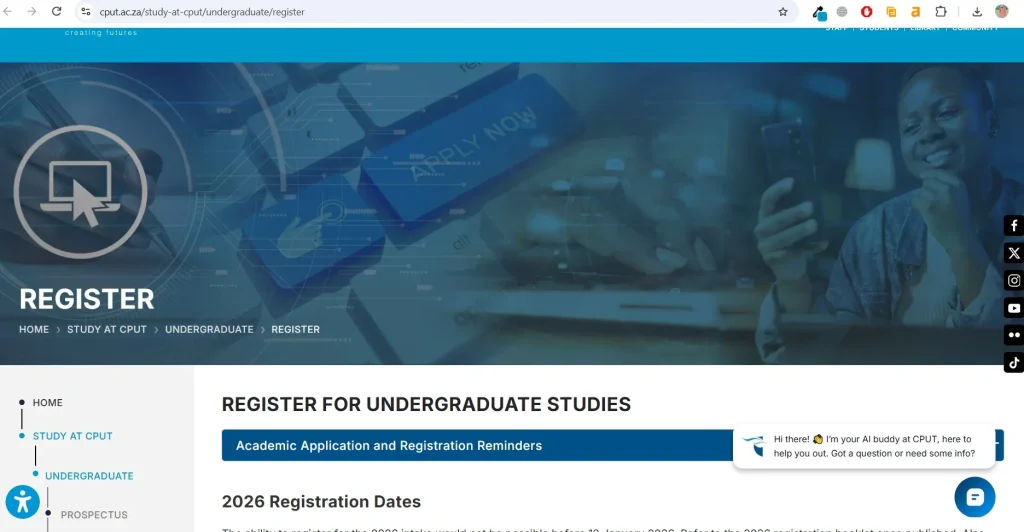
For students who have received the necessary admission outcome and are proceeding with registration, CPUT provides online registration information through its official website.
CPUT Undergraduate Registration
The university advises applicants to track their application status through the CPUT website and says applicants should not report to campus until a final acceptance outcome has been received. (Cape Peninsula University of Technology) For 2026, CPUT’s undergraduate registration information states that accepted first-year undergraduate applicants must register within 48 hours of being accepted, otherwise the acceptance offer can be deferred to another applicant. (Cape Peninsula University of Technology) Students should therefore monitor their CPUT status check results and official CPUT communications carefully before attempting registration.
Checking Registration Information in CPUT SOS
Once you have access to CPUT student services, you can use the available student services to review registration information.
A student may need to check:
CPUT confirms that SOS provides access to registered subjects and allows students to print proof of registration. (Cape Peninsula University of Technology) If you have completed registration, keeping a copy of your proof of registration can be useful when accessing other university services or responding to administrative queries.
CPUT Data and Key Online Services
Data: CPUT’s official online student services include Student Online Services (SOS) for student data, registration, registered subjects, proof of registration, progress marks, contact information and fees; the official application tracker for checking application status and admission-related communication; and My Classroom/Blackboard for online learning. The official CPUT student page currently lists SOS and My Classroom/Blackboard among its student quick links. (Cape Peninsula University of Technology)
How to Use CPUT SOS for Student Online Services
The CPUT SOS system, also known as Student Online Services, is one of the main online platforms for students at the Cape Peninsula University of Technology. Students can use SOS CPUT to manage several academic and administrative tasks without visiting a campus office. The service can be used for online registration, checking registered subjects, viewing academic information, printing proof of registration, checking progress marks, updating contact information and managing fee-related information. To access the official student services, start from the CPUT official website and open the student section. The official CPUT student page provides quick access to important services, including Student Online Services (SOS) and My Classroom/Blackboard.
CPUT portal Login Steps
Follow these steps to access your CPUT portal login account:
Step 1: Open the official CPUT website
Go to the official CPUT website and navigate to the student services area.
Step 2: Open Student Online Services
Select the Student Online Services (SOS) option from the available student quick links. This takes you to the official CPUT online student service.
Step 3: Enter your login details
Provide your CPUT student number and the required SOS PIN or password. Make sure that the information is entered correctly because incorrect login details can prevent access.
Step 4: Open your student dashboard
After successful authentication, you can access the available CPUT portal login services associated with your student account.
Step 5: Select the required service
Depending on your student status, you may be able to access registration, registered subjects, academic information, progress marks, fees, contact information and other student services.
CPUT Status Check 2026: Check Your Application Status
The CPUT status check is useful for applicants who want to find out what is happening with their application to the Cape Peninsula University of Technology. CPUT provides an official application tracker where applicants can enter the requested identification or application details and view available application information. A status check can help applicants determine whether their application has been processed, whether additional communication is available and whether an admission-related decision has been recorded. However, an application acknowledgement should not automatically be treated as an admission offer.
How to Complete a CPUT Status Check
Step 1: Open the official application tracker
Visit the CPUT Application Tracker through the official CPUT website.
Step 2: Select the appropriate identification option
The application tracker may allow applicants to use information such as an ID number, passport number, asylum number or student number, depending on the available application options.
Step 3: Enter your details
Enter the information requested by the tracker carefully. Check the details before submitting the form to reduce the chance of an unsuccessful search.
Step 4: Submit the status request
Submit the form and wait for the system to display the available application information.
Step 5: Review your CPUT application status
The tracker may provide information such as the application year, qualification choice, application status and available admission communication. If an admission letter or other communication is available, follow the instructions provided by CPUT.
Important Difference Between CPUT Status Check and CPUT SOS
Although students and applicants may search for CPUT status check, SOS CPUT and CPUT SOS together, these services are used for different purposes. The CPUT status check is mainly intended for checking application and admission-related information. CPUT portal login is primarily a student administration platform used by registered students for services such as registration, academic information, proof of registration and other student-related activities. In simple terms, applicants can use the status tracker to follow their application, while current students can use SOS CPUT to manage their student information and academic administration.
CPUT Registration Through SOS
Registration is one of the most important services associated with CPUT SOS. Once a student is eligible and permitted to register, online registration can be completed through the appropriate CPUT student service. Students should check their admission status and any registration restrictions before attempting to register. A restriction or outstanding requirement can prevent registration from being completed. For official registration information, use the CPUT Undergraduate Registration page.
How to Register Through CPUT Student Online Services
Step 1: Check your admission or student status
Before registering, confirm that your CPUT application or student status allows you to proceed.
Step 2: Log in to CPUT student services
Open the official Student Online Services platform and sign in with your student credentials.
Step 3: Check registration restrictions
Look for any restrictions or outstanding requirements shown on your account. If a restriction is displayed, follow CPUT’s instructions for resolving it.
Step 4: Select the registration option
Open the relevant registration service and review the qualification or programme information displayed for your account.
Step 5: Select your subjects
Choose the subjects or modules that apply to your approved study plan. Carefully review your selections before submitting registration.
Step 6: Submit the registration
Complete the registration process according to the instructions displayed by CPUT.
Step 7: Obtain proof of registration
After successful registration, use the relevant SOS option to access or print your proof of registration. Keep this document for your records because it can be useful when dealing with academic, administrative or financial matters.
CPUT Registration Restrictions
If you cannot register through CPUT portal login, one possible reason is a registration restriction. Restrictions may be related to outstanding administrative requirements, academic matters, fees or other conditions associated with your student record. Do not repeatedly submit registration information without checking the reason for the restriction. Instead, review the information displayed in SOS and use the appropriate CPUT support channel if you need clarification. The official CPUT registration information also provides guidance for students regarding registration requirements and related queries. Students should always follow the current instructions published by CPUT rather than relying on old registration information from unofficial websites.
CPUT Proof of Registration
After completing registration, students may need proof that they are officially registered for their programme and subjects. CPUT SOS can provide access to registration information and proof of registration where available. A proof of registration document can contain important information about your student status and registered academic activities. Students should download, save or print the document when required. If an organisation asks you to provide evidence that you are currently studying at CPUT, your official proof of registration can be useful for verification.
CPUT Registered Subjects and Academic Information
Another useful feature of CPUT portal login is the ability to review registered subjects. Checking your registered subjects is important because it allows you to confirm that the modules associated with your registration are correct. After logging into CPUT student services, look for the academic or registration-related section available on your account. Review the subjects carefully and compare them with your approved programme requirements or registration information. If something appears incorrect, contact the relevant CPUT faculty or student support service rather than assuming that the information will automatically be corrected.
CPUT Progress Marks and Results
Students may also use CPUT’s online systems to access academic performance information. CPUT SOS can provide access to progress marks or academic information, while the university also provides a dedicated examination results service. For official examination information, visit the CPUT Examination Results page. The available results may depend on the type of assessment and the stage of the academic year. Students should check their official CPUT account and university communication for the latest information about marks and results.
CPUT Blackboard 2026: Online Learning Platform
Blackboard CPUT is another important service that students may need after completing registration. CPUT uses its online learning environment, commonly referred to as My Classroom/Blackboard, to support teaching and learning activities. While CPUT student services is mainly focused on student administration, CPUT Blackboard is focused on online learning. Students may use the learning platform to access course materials, announcements, lecturer information, assessments, marks, assignments and other academic resources. The official CPUT student services area provides access to the university’s online learning resources. Students should use their official CPUT credentials and follow faculty or lecturer instructions when accessing their online classroom.
How to Access CPUT Blackboard
Step 1: Open the official CPUT website
Start from the CPUT official website.
Step 2: Open the Student section
Go to the CPUT student area and locate the available online learning links.
Step 3: Select My Classroom/Blackboard
Choose the official My Classroom/Blackboard option.
Step 4: Sign in
Enter your CPUT login credentials when requested.
Step 5: Open your course
After signing in, check the courses or modules assigned to your account.
Step 6: Review course materials
Open the relevant course to view announcements, learning materials, assignments, assessments and other resources made available by your lecturer or faculty.
CPUT SOS vs Blackboard: What Is the Difference?
The easiest way to understand the difference is to think of CPUT SOS as the student administration system and Blackboard CPUT as the online learning environment. CPUT student services is used for activities such as registration, registered subjects, proof of registration, student information, progress marks and certain fee-related services. CPUT Blackboard/My Classroom is used for learning activities such as course materials, announcements, assignments, assessments and communication related to your modules. If you need to check whether you are registered, start with SOS CPUT. If you need to find lecture material or submit an online assignment, check Blackboard CPUT.
What to Do If a CPUT Blackboard Course Is Missing
If you have successfully registered but cannot see one of your courses in CPUT Blackboard, first confirm your registration information through CPUT SOS. Make sure the relevant subject or module appears correctly on your registration record. If the subject is correctly registered but the course is still missing from Blackboard, check official CPUT communication and contact the relevant faculty or lecturer for assistance. Course availability can depend on the academic setup of the module and the timing of enrolment. Students should avoid creating duplicate accounts or changing account information unnecessarily when a course is missing. First verify your registration and login details.
CPUT SOS Login Problems
Sometimes students may have difficulty accessing CPUT SOS. Common issues can include incorrect credentials, forgotten PIN information, account-related problems or temporary system issues. If your SOS CPUT login does not work, first check that you are using the correct student number and SOS credentials. Make sure there are no typing errors and try again using the official CPUT service. If you have forgotten your SOS PIN, use the official CPUT PIN retrieval process where available. Do not use unofficial websites that request your CPUT login information.
Quick CPUT SOS Troubleshooting
If CPUT SOS is not working, check the following:
Keeping your CPUT login information private is also important. Never share your student credentials with another person or enter them into an unofficial website.
CPUT Online Services Data and Key Information
CPUT provides several official online services to help students manage their academic and administrative needs. Student Online Services (SOS) gives students access to important functions such as student information, online registration, registered subjects, proof of registration, progress marks, contact details and fee-related services. Applicants can use the official CPUT application tracker to check application status and access available admission-related communication. For online learning, My Classroom/Blackboard provides access to course-related activities and learning resources. The official CPUT student website lists SOS and My Classroom/Blackboard among its student quick links, making it a useful starting point for accessing these services.
How to Check CPUT Exam Results Online
After completing assessments and examinations, CPUT students can use the university’s official online services to access available academic results. The CPUT exam results service is separate from the application status tracker, so students should use the correct CPUT service depending on what information they need.
To check official examination information, visit the CPUT Examination Results page.
Steps to Check CPUT Results
Step 1: Open the official CPUT website
Visit the official CPUT website and open the student section.
Step 2: Find Examination Results
Select the examination results option from the available student quick links.
Step 3: Sign in if required
Enter your CPUT student credentials if the service requires authentication.
Step 4: Select the relevant academic information
Choose the applicable examination period, academic year or other available option.
Step 5: Review your results
Check the marks or results displayed on the official CPUT system. Save or print the information if you need it for your records.
Students should remember that CPUT SOS may provide academic and progress information, while the dedicated examination results service is intended specifically for examination-related results.
How to Update Your CPUT Student Information
Keeping your personal information up to date is important because CPUT may use the details stored in your student record for official communication. Through CPUT SOS, students may have access to options for updating certain contact information. This can include information such as contact details, depending on the options available on the student’s account.
Steps to Update Information on CPUT SOS
Step 1: Log in to the official SOS CPUT platform.
Step 2: Open the student information or personal details section.
Step 3: Review the information currently displayed.
Step 4: Update the details that you are permitted to change.
Step 5: Check the information carefully before submitting the changes.
Step 6: Save or submit the updated information.
If a particular personal detail cannot be changed online, contact the relevant CPUT administrative office for guidance.
CPUT Fees and Financial Information
Students may also use CPUT SOS to access certain fee-related information. The exact options available can depend on the student’s account and current university processes. Checking your fee information online can help you identify outstanding amounts or other financial information associated with your student record. Students should use official CPUT payment instructions and avoid sending money through unofficial channels. If your registration is affected by a financial restriction, review the information shown on CPUT student services and follow the official CPUT instructions for resolving the issue. For registration-related questions, students can also review the official CPUT Registration FAQ.
CPUT Application Status Not Changing
One common reason applicants search for CPUT status check is that their application status does not appear to change immediately. Application processing can involve several stages, and the status displayed in the official tracker should be interpreted according to the information provided by CPUT. Applicants should regularly check their official application information and any communication made available through the university. If your status has not changed, avoid submitting multiple new applications simply because the tracker has not updated. Instead, check your existing application information and follow any instructions provided by CPUT. The official application tracker can be accessed through the CPUT Application Tracker.
CPUT Admission Status and Acceptance
Applicants should understand the difference between submitting an application and receiving an admission decision. Completing a CPUT application or receiving an acknowledgement does not by itself mean that the applicant has been accepted. Use the official CPUT status check service to monitor application information and look for any admission communication associated with your application. If CPUT provides an admission offer, read the instructions carefully and complete the required steps within the stated period. Applicants should also check the official registration instructions after receiving an offer.
CPUT 2026 Registration After Acceptance
For the 2026 registration process, CPUT provided specific instructions for accepted applicants. First-year undergraduate applicants who receive an acceptance offer should carefully follow the university’s registration instructions and applicable deadlines. CPUT’s official registration information should be treated as the primary source because registration dates, requirements and procedures can change. Visit the CPUT Undergraduate Registration page for current registration information. Students who have already been accepted should not rely only on information from social media posts or older articles. Always compare the information with the latest instructions published by CPUT.
CPUT SOS PIN: What to Do If You Forget It
Your CPUT SOS PIN is used to access Student Online Services. If you cannot remember your PIN, use the official CPUT PIN retrieval process rather than attempting to obtain login details from unofficial websites. The PIN recovery process may require information that helps CPUT identify your student record. Enter your information only into an official CPUT service. After recovering or resetting your credentials, keep your new login information secure. Do not share your SOS PIN with friends, agents or other people.
CPUT Student Portal: Services You Can Access
The term CPUT student portal is commonly used when referring to the university’s collection of online student services. Depending on your student status and available systems, these services can help you manage different parts of your academic journey. Through CPUT SOS, students can access important administrative services such as registration, student information, registered subjects, proof of registration, progress marks and certain fee-related information. Through Blackboard CPUT/My Classroom, students can access online learning resources, course announcements, assessments, assignments and other teaching-related information. Applicants can use the CPUT status check or application tracker to follow application-related information. Using the correct platform saves time because each service has a different purpose.
CPUT SOS, Blackboard and Status Check: Quick Comparison
| CPUT Service | Main Purpose | Typical Users |
|---|---|---|
| CPUT SOS | Student administration, registration and academic information | Current students |
| SOS CPUT | Online student services and student record functions | Current students |
| CPUT Status Check | Application and admission information | Applicants |
| CPUT Application Tracker | Track application-related information | Applicants |
| Blackboard CPUT | Online learning, assignments and course materials | Registered students |
| My Classroom | Online academic learning environment | Registered students |
| CPUT Exam Results | Examination-related results | Students |
This comparison shows why students should choose the appropriate CPUT service instead of using one platform for every task.
Common CPUT SOS Problems and Solutions
SOS CPUT Login Not Working
If your CPUT SOS login is not working, check your student number and login credentials first. Make sure you are accessing the official CPUT service and not an unofficial page. If your credentials are correct but you still cannot sign in, try accessing the service again later or contact the relevant CPUT support office.
CPUT Status Check Shows No New Information
If the CPUT status check does not display new information, carefully review the existing application details and check whether CPUT has provided any additional communication. Avoid relying on screenshots or status information posted by other applicants because application circumstances can differ.
Blackboard CPUT Course Is Missing
If a course does not appear in Blackboard CPUT, first confirm through CPUT SOS that you are correctly registered for the relevant subject. If registration is correct, contact the appropriate academic or faculty support channel.
CPUT Registration Is Blocked
If registration is blocked, check your CPUT SOS account for registration restrictions or outstanding requirements. Resolve the restriction according to CPUT’s instructions before attempting registration again.
CPUT Results Are Not Available
If examination results are not yet displayed, check the official CPUT examination results service and university communication for information about the relevant results release.
Tips for Using CPUT Online Services Safely
Students should take basic security precautions when using CPUT SOS, Blackboard CPUT and other online university services. Always start from the official CPUT website when you are unsure about a login link. Check the website address before entering your student number, password or SOS PIN. Do not give your CPUT credentials to another person. Avoid entering your login information into websites that claim to offer faster CPUT status checks, registration services or Blackboard access. If you receive an unexpected message asking for your password, PIN or other sensitive account information, verify it through an official CPUT communication channel before taking action.
Frequently Asked Questions
Conclusion
The CPUT SOS platform is an important part of the Cape Peninsula University of Technology’s online student services. Students can use SOS CPUT for several administrative tasks, including registration, checking registered subjects, accessing proof of registration, reviewing progress information and managing available student details. Applicants should use the official CPUT status check and application tracker when they need to follow their application or admission information. Once students are registered, CPUT Blackboard/My Classroom becomes important for online learning activities, including course materials, announcements, assignments and assessments. For the most accurate and current information, students should always use the official CPUT website and university-published instructions. Registration dates, online service procedures and academic requirements can change, so information from older third-party websites should be checked against current CPUT guidance. Whether you need CPUT student services, a CPUT status check, Blackboard CPUT, registration information or examination results, starting from the official CPUT website is the safest way to reach the correct university service.for more information visit my home page.
READ MORE