

eFundi is North-West University’s (NWU) official learning management system. Registered students use it to reach their online module sites, study resources, announcements, assignments, tests, assessments, forums and other teaching activities. NWU describes the platform as the online learning and collaboration environment connecting students and lecturers. (NWU Services)If you are trying to access your courses, the correct starting point is the official eFundi website:Open the official eFundi websiteThis guide focuses on students in South Africa and explains the access process, account details, password requirements, module access and common problems.
What Is eFundi at NWU?
eFundi is the digital learning environment used by North-West University. It gives students a central place to interact with the modules for which they are registered and allows lecturers to provide learning materials and manage online academic activities.if you want to know about NWU Status Check 2026: Check Your Application Status Online click here.
Depending on your modules, you may use the platform to:
The platform is available through a web browser on computers and mobile devices. NWU’s current eFundi information confirms that students and lecturers use their NWU credentials to access the system.

eFundi vs NWU Student Portal
One point often causes confusion: eFundi and the NWU Student Portal are not the same system.eFundi is primarily the learning environment for modules, teaching resources and academic activities. The Student Portal/SIS is used for administrative services such as registration and other student-management functions. NWU’s IT information lists these as separate systems. So, if your goal is to open course material or work with a module, eFundi is generally the system you need.
What You Need Before You Access eFundi
Before starting the nwu efundi login process, have the following information ready:
| Requirement | What you need |
|---|---|
| Student number | Your NWU university/student number |
| Password | Your current NWU password |
| Device | Computer, laptop, tablet or smartphone |
| Browser | An updated web browser |
| Internet | A stable internet connection |
NWU states that a registered student’s university number is used as the username for its systems such as eFundi. The university also provides password-management guidance for students.
Browser Requirements
For the best experience, use an updated browser. NWU’s student orientation materials specifically mention Mozilla Firefox and Microsoft Edge as suitable browsers for eFundi. The live eFundi gateway also indicates that JavaScript should be enabled for the platform to work properly.If the page does not load correctly, first check that JavaScript is enabled and that your browser is up to date.
How to Access the NWU eFundi Website
There are two practical ways to reach the platform.
Option 1: Go Directly to eFundi
Open your browser and enter:
The official gateway currently displays the North-West University Learning and Collaboration Environment and provides a Login option. (eFundi)
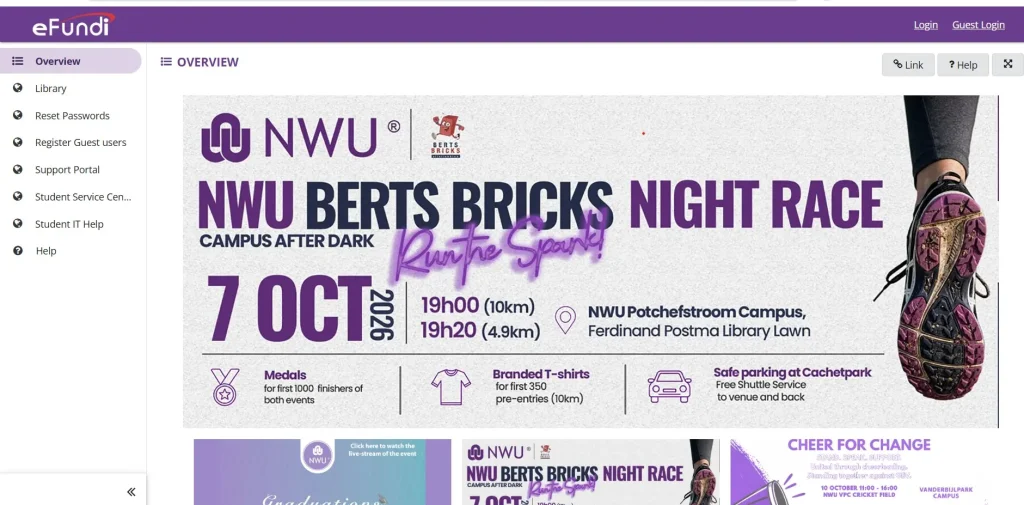
Option 2: Start From the NWU Website
You can also visit the official NWU website and navigate to the eFundi section. NWU provides an eFundi page with the direct access option, tutorials and password resources. (North-West University)
For students who already know the address, going directly to eFundi is normally the quickest route.
eFundi Login: Step-by-Step Access Process
Once you have your NWU student number and password, follow these steps.
Step 1: Open an Updated Browser
Launch Microsoft Edge, Mozilla Firefox, Google Chrome or another current browser on your device.If you’re using a phone or tablet, make sure the browser is updated. A reliable connection is also useful because module pages may contain documents, videos or other learning resources.
Step 2: Visit the Official eFundi Address
Enter efundi.nwu.ac.za in the browser address bar.
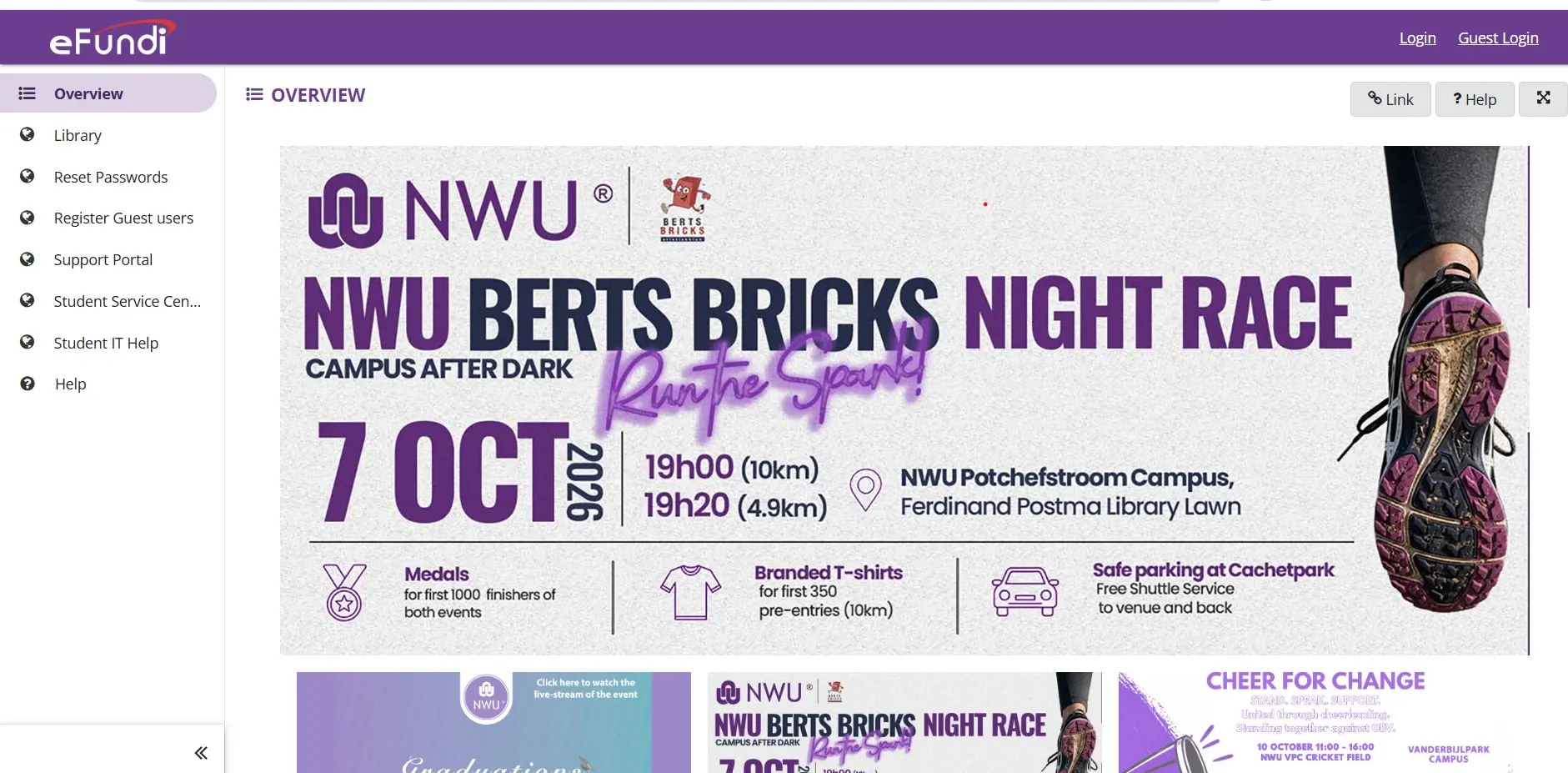
Avoid relying on unofficial websites that claim to provide an alternative login service. For account security, use the official NWU domain.Go to eFundi The official gateway includes the Login option and identifies itself as the NWU Learning and Collaboration Environment. (eFundi)
Step 3: Select “Login”
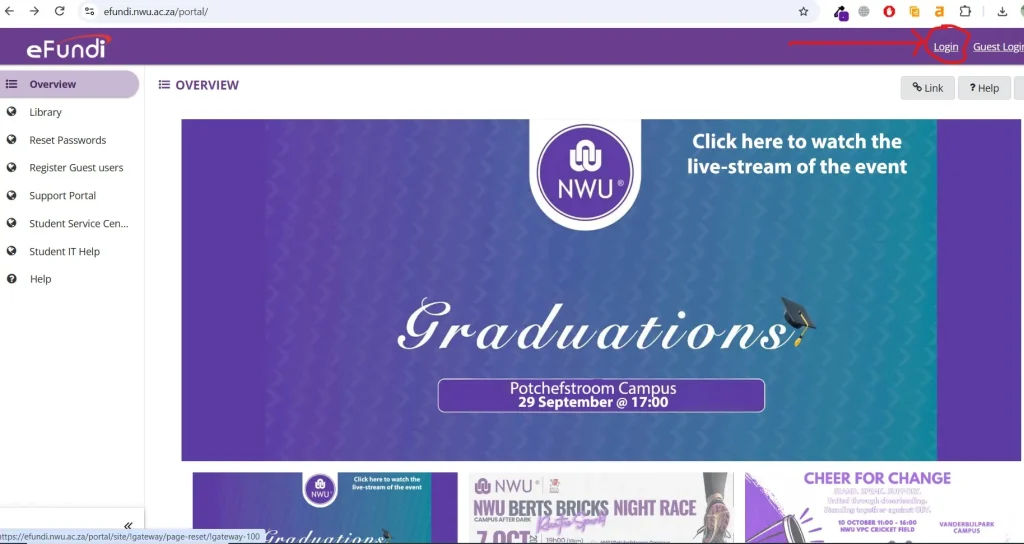
Look for the Login button on the eFundi page, located near the top of the interface.Select it to open the NWU authentication screen.NWU’s student orientation instructions describe the same basic process: open eFundi, select Login, then provide your NWU student number and password. (North-West University)
Step 4: Enter Your Student Number
When the authentication screen appears, enter your NWU student number in the username field.For example:12345678 The number above is only an example. Use your own university number.NWU’s current student-password guidance confirms that the username for a registered student is the student’s NWU university number. (NWU Services)
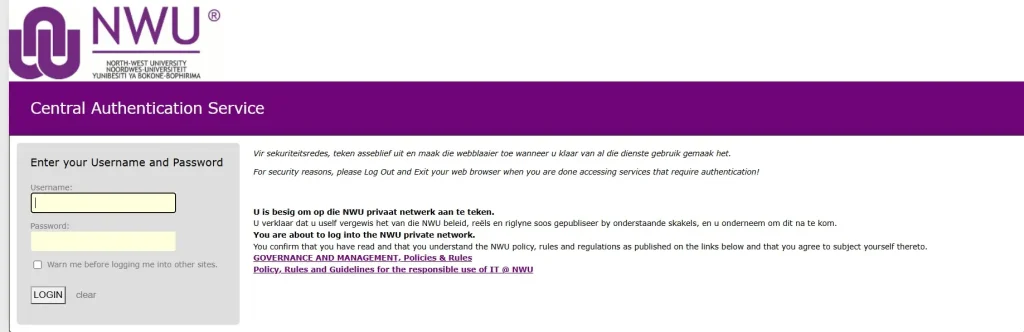
Step 5: Enter Your Password
Enter your current NWU password in the password field.This is where the efundi login password information becomes important. New students receive an initial password connected to their identification or passport number, but NWU instructs students to change the default password. For South African students, NWU states that the default password consists of the South African identity number followed by @Nwu. For international students, including students from Namibia, it consists of the passport number followed by @Nwu. The capital N matters because passwords are case-sensitive.
Important: Do not publish, send or share your password with anyone.
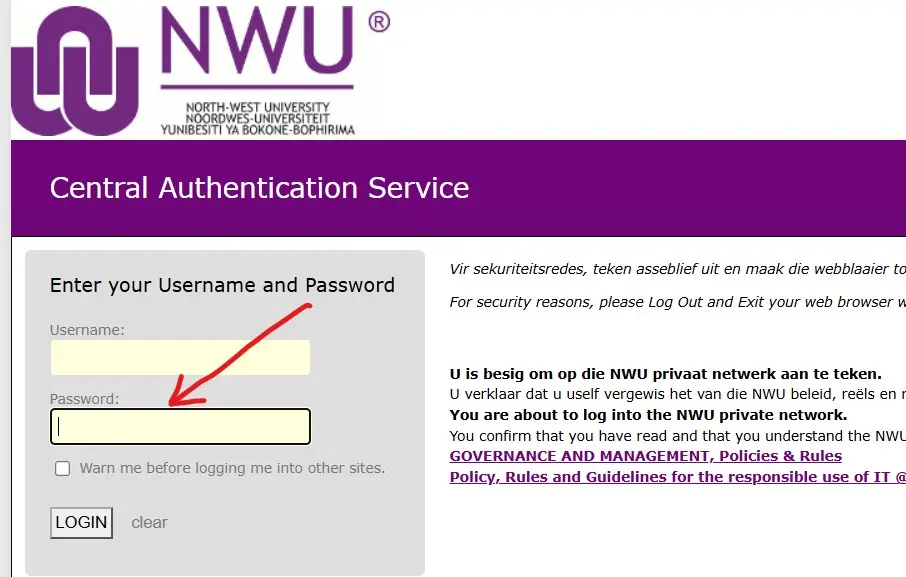
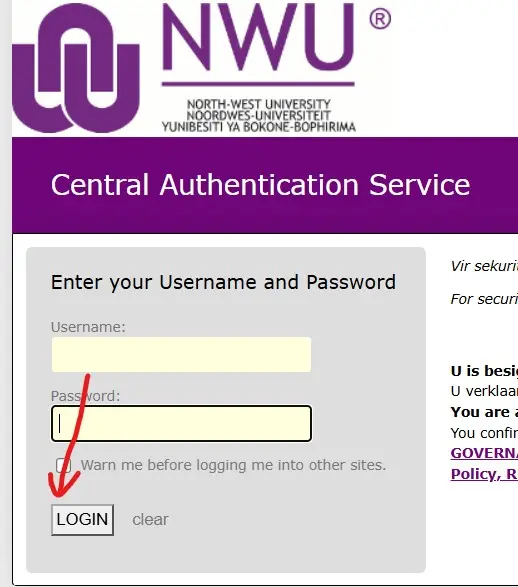
Step 6: Select “LOGIN”
After entering both credentials, select LOGIN.If the details are accepted, the system should take you into the eFundi environment.if you receive an authentication error, don’t repeatedly guess passwords. Check the student number, password and account status first.
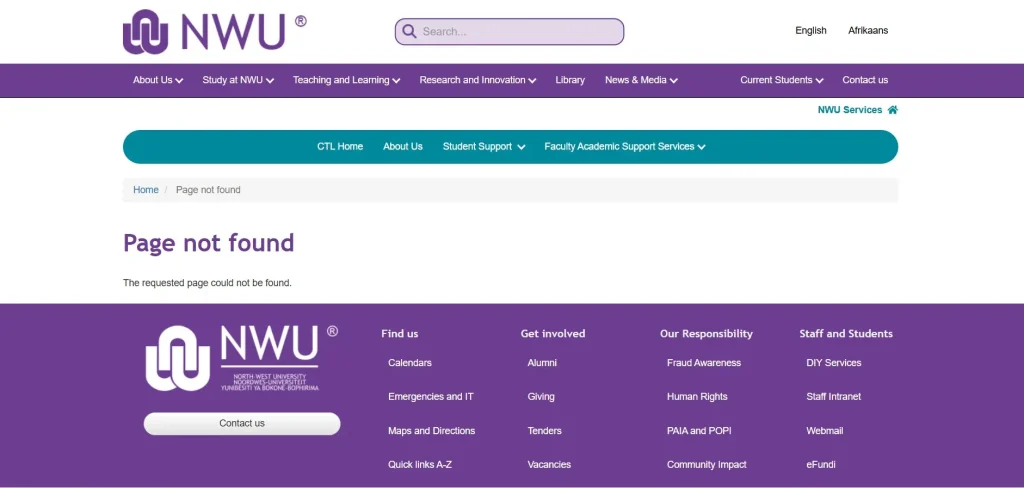
Step 7: Find Your Modules
After you enter eFundi, look for the module sites connected to your studies.eFundi acts as a gateway to your modules, where lecturers can provide study material, communicate with students and manage assessments. (North-West University)if you have registered for a module but cannot find its site, NWU’s support resources include guidance for finding and favouriting module sites. (NWU Services)
What Can Students Do After Signing In?
Once access has been completed, eFundi can become your main online learning workspace for NWU modules.
Study Materials
Lecturers can upload readings, lecture resources, assignments and other course content for students to access. (NWU Services)
Announcements
Module communication can include announcements from lecturers. These may contain information about coursework, tests, deadlines or changes affecting the module.
Assignments
Students can use eFundi to submit assignments where the relevant module requires online submission.
Tests and Assessments
eFundi supports online tests and assessment activities. NWU’s support resources also provide tutorials covering tests, resources and marks. (NWU Services)
Forums and Collaboration
Some modules use forums and group features for discussion and collaboration. The exact tools available depend on the module site and lecturer.
Your Password Is Important
One of the most common causes of access problems is an expired or incorrect password.NWU’s current student information says that the default password is created during registration and should be changed. The university’s password guidance states that the initial default password expires within two weeks, so new students should change it promptly. (NWU Services)NWU also states that an established password is used across its CAS systems, including eFundi, email and Microsoft 365. This is different from the Student Engagement Portal password used for registration. (NWU Services)
For password management, use the official NWU resource:
NWU Student Passwords
Password Tip
If your password worked previously but suddenly stops working, don’t assume that the eFundi website itself is broken. A password expiry or account issue can prevent access to NWU systems. NWU specifically provides password reset and change guidance for these situations.
Quick Access Checklist
Before trying again, confirm:
eFundi Password Reset and Login Problems
Even when the official eFundi website is working normally, students may sometimes have difficulty accessing their accounts. Common causes include an incorrect password, an outdated browser, an incorrect username format, an expired password, or temporary authentication problems.If you cannot complete the eFundi login, work through the checks below before contacting NWU support. This can help identify whether the problem is related to your credentials, browser, account, or the eFundi platform itself.
How to Reset Your eFundi Password
Your NWU password is used to authenticate your university account, so a forgotten or expired password can prevent access to eFundi.NWU provides official IT information and password-management resources for students. Instead of using third-party password-reset websites, students should use the password-management options provided by NWU.Start with the official NWU student IT information page:
NWU IT Student Information
You can also access the official eFundi information page:NWU eFundi InformationWhen resetting your password, make sure you use the account associated with your current NWU student credentials.
Password Reset Steps
The general process is:
Step 1: Open the official NWU password-management resource.
Step 2: Follow the university’s current instructions for changing or resetting your password.
Step 3: Complete any identity or account verification requested by NWU.
Step 4: Create a new password that meets the university’s password requirements.
Step 5: Save the new password securely.
Step 6: Return to the official eFundi website and try signing in again.
If you recently changed your password, make sure you use the new password rather than an older password saved by your browser.
eFundi Login Password Problems
An incorrect password is one of the most common reasons students cannot access their accounts. However, repeatedly entering a password without checking the account details can make troubleshooting more difficult.
If your eFundi login password is rejected, first check that:
If you normally use a password manager, check that it has not stored an outdated NWU password.
You should also avoid sharing your password with classmates, friends, or anyone claiming to provide unofficial login assistance. University credentials should remain private.
What If You Forgot Your NWU Password?
If you have forgotten your password completely, use the official NWU password-management process rather than trying random passwords repeatedly.NWU’s IT student information provides guidance for account and password-related issues. You can access it through the official university website:NWU IT Student Information If the automated password process does not resolve the issue, contact the appropriate NWU support service and explain that you cannot authenticate your student account.Have your student information available when contacting support, but do not send your password to anyone.
New Students and Initial Passwords
First-year students sometimes have questions about the password they should use during their first access attempt.NWU has published first-year guidance explaining how new students can begin using eFundi. Historical NWU instructions describe an initial password format based on an identification or passport number followed by @Nwu.Because university authentication systems can change, students should always compare older instructions with the latest information provided by NWU.For current student information, use the official NWU pages rather than relying on screenshots or instructions posted on unrelated websites.NWU First-Year eFundi Guidance If your current NWU registration or orientation instructions provide a different password format, follow the current university instructions.
eFundi Login Not Working? Try These Fixes
If the login page opens but you cannot access your account, work through the following troubleshooting steps.
Check Your Username
First, confirm that you are entering the correct NWU account identifier.Older eFundi documentation commonly refers to the student number as the username. However, current NWU authentication instructions may use a university account or email format.For this reason, use the username format currently specified by the NWU login page or your latest university instructions.Do not automatically assume that an old student number format is still required if the current authentication screen asks for another NWU identity.
Check Your Password
Next, carefully enter your current password.If you recently changed it, do not use the password that was previously saved in your browser.A useful troubleshooting method is to type the password manually rather than selecting an old browser autofill suggestion.
Check Caps Lock
Passwords are usually case-sensitive.If your password contains uppercase and lowercase letters, check that Caps Lock is not accidentally enabled.You can also type a temporary non-sensitive word into another text field to confirm whether your keyboard is producing the expected uppercase and lowercase characters. Never type your actual password into a public or unsecured text field.
Try Another Browser
If the eFundi page behaves unexpectedly, open it using another current browser.
For example, you can try:
An outdated browser, damaged cache, or browser extension can sometimes interfere with websites.
Start by opening the official website again:
Official eFundi Portal
Use a Private or Incognito Window
Another useful troubleshooting step is to open a private browsing window.In Chrome, this is called Incognito Mode. In Firefox and Edge, similar private browsing options are available.Then enter the official eFundi address manually and attempt to authenticate again.Private browsing can help determine whether an existing cookie, cached session, or browser extension is contributing to the problem.
Clear Browser Cache and Cookies
If eFundi repeatedly displays an old page or behaves differently after you have changed your password, clearing relevant browser data may help.You can clear cached files and cookies through your browser’s settings.
After clearing the data:
Only clear data when necessary, because doing so can sign you out of other websites.
What If eFundi Says Your Password Is Incorrect?
If the platform repeatedly rejects your password, do not assume that the eFundi system itself is down.
There are several possibilities:
Start by verifying your credentials through the official NWU resources.
If the issue continues after a legitimate password reset, contact NWU support and provide a clear description of the problem.
What If You Can Log In but Cannot See Your Modules?
A successful login does not necessarily mean that every module will immediately be visible.Module availability can depend on your registration and whether the relevant eFundi site has been made available.NWU provides student tutorials and support resources covering module sites and eFundi navigation.If a registered module is missing, check the available sites and navigation areas within eFundi.You should also confirm that your registration has been completed correctly.If you still cannot find the module, contact the relevant NWU support service or your faculty/module staff for assistance.
How to Find an eFundi Module
After authentication, look through your available eFundi sites.Depending on the current eFundi interface, you may use the site’s navigation or site-selection features to locate modules.If you have several modules, finding a particular site can be easier by checking the site’s available search or navigation functions rather than opening each module individually.
NWU’s official student tutorials provide additional instructions for working with module sites and other eFundi features.
eFundi Login Error After Changing Your Password
If you changed your NWU password and immediately receive a login error, first make sure that you are entering the new password.Avoid relying on an automatically completed password field because your browser may still have the previous credentials saved.
You can also:
If authentication still fails, contact NWU support rather than repeatedly attempting different passwords.
Mobile eFundi Access
Students may access eFundi using a smartphone or tablet through a supported web browser.For mobile access, open your browser and enter the official address:https://efundi.nwu.ac.za. A reliable internet connection is recommended, particularly when accessing documents, completing assessments, uploading assignments, or participating in other activities that require stable connectivity.For lengthy assignments or important assessments, students may prefer a computer when one is available because a larger screen and physical keyboard can make certain tasks easier.
Is eFundi the Same as the NWU Student Portal?
No. eFundi and the NWU Student Portal serve different purposes.eFundi is the university’s learning and collaboration environment. Students use it for academic course activities, including module resources, assignments, tests, announcements, and other learning functions.The NWU Student Portal/SIS is a separate student administration system.This distinction matters when troubleshooting because successfully accessing one system does not necessarily mean that every other NWU service will use the same interface.NWU’s official IT information provides separate information about these student systems.
How to Avoid Fake eFundi Login Pages
Students should be particularly careful when searching for login pages through search engines.Search results can contain unofficial websites, old instructions, advertisements, or pages that are not operated by NWU.For the eFundi login, use the official university address:https://efundi.nwu.ac.za.Before entering your credentials, check the browser address bar and confirm that the site is hosted on the official nwu.ac.za domain.Never provide your NWU username or password to a person who contacts you unexpectedly and claims they need your credentials to fix your account.If you receive a suspicious message containing a login link, navigate directly to the official NWU website instead of clicking the supplied link.
eFundi Support for Students
If you have completed the basic troubleshooting steps and still cannot access eFundi, NWU provides dedicated support resources.The official eFundi support page includes information for students dealing with login issues, missing modules, assignments, assessments, resources, and other platform-related questions.NWU eFundi Support NWU’s eFundi support information lists [email protected] for eFundi-related support and provides weekday support hours. The NWU eFundi information page also lists the T&L Technologies Helpdesk at 018 285 5930. Check the official pages for the latest support hours before contacting the university.
Information to Include When Contacting Support
When contacting NWU support, give enough information for the technical team to understand the problem.
You can include:
Do not include your password in an email, support ticket, screenshot, or message.
A clear description of the problem can help support staff determine whether the issue concerns your account, authentication, browser, module registration, or eFundi itself.
Quick Troubleshooting Checklist
Before contacting support, complete these checks:
| Problem | Recommended action |
|---|---|
| Wrong credentials | Recheck your current NWU username and password |
| Forgotten password | Use the official NWU password-management process |
| Old password autofill | Delete or replace the saved credential |
| Caps Lock | Check keyboard capitalization |
| Browser issue | Try Chrome, Edge, or Firefox |
| Cached page | Clear browser cache/cookies |
| Login session problem | Try a private/incognito window |
| Missing module | Check available eFundi sites and registration |
| Persistent error | Contact NWU eFundi/IT support |
| Suspicious login link | Use the official NWU website directly |
The safest approach is to work through these checks systematically instead of repeatedly attempting passwords or using unofficial websites.
Key Points to Remember
The official eFundi platform is hosted at efundi.nwu.ac.za, and students should use the current NWU authentication instructions when signing in Your university password should remain private, and password-reset requests should be completed through official NWU resources. If you can authenticate but a module is missing, check your available sites and registration status before assuming that your account is broken.For unresolved technical issues, NWU’s official eFundi support resources provide the appropriate support channels and student tutorials.
eFundi Student Features and Online Learning
After successfully completing the eFundi login, students can use the platform for many academic activities. The exact features available can differ between modules because lecturers and faculties may configure their course sites differently.The platform is designed to bring online learning resources and communication into one environment. Students may use their module sites to read announcements, access learning materials, submit assignments, complete assessments, participate in discussions, and view marks or feedback where those functions have been enabled.NWU provides official student tutorials covering different eFundi functions, so students can use those resources when they need instructions for a specific activity.
Accessing Your Module Resources
Once you are signed in, open the relevant module site from your available eFundi sites.
A module can contain different types of resources, including:
The material available to you depends on the module and what the lecturer has published.
If you cannot find a resource that you expect to see, check the module’s announcements and navigation sections first. Some lecturers may organize their content into different folders, topics, or sections.
Submitting Assignments Through eFundi
Some NWU modules use eFundi for assignment submissions.Before submitting an assignment, carefully read the instructions provided on the relevant module site. Check the deadline, required file format, maximum file size, and any other requirements specified by the lecturer.
A typical submission process involves:
Do not wait until the final few minutes before the deadline to upload an important assignment. Internet problems, large files, browser issues, or other technical difficulties can interfere with a last-minute submission.NWU provides official student tutorials covering assignment-related eFundi activities.
NWU eFundi Student Tutorials
Completing Tests and Online Assessments
Some modules may provide tests or assessments through eFundi.Before beginning an online assessment, check the instructions provided by your lecturer. Pay attention to the opening and closing times, duration, number of attempts, permitted materials, and submission requirements.Students should also make sure that they have a stable internet connection before starting an important assessment.If an assessment is interrupted by a technical problem, record the error message or other relevant details and contact the appropriate NWU support channel as soon as possible.Do not assume that refreshing a test page repeatedly will resolve every problem, particularly if the assessment has time restrictions.
Checking Announcements
Announcements are an important part of online learning.Lecturers may use the announcement function to communicate information about:
Students should check their module sites regularly instead of relying entirely on messages from classmates.if you are expecting information from a lecturer and cannot find it, check the relevant module’s announcement area.
Viewing Grades and Feedback
Depending on how a module is configured, eFundi may allow students to view grades, marks, or lecturer feedback.After submitting an assignment or completing an assessment, check the appropriate section of the module to see whether results have been released.Keep in mind that not every activity will necessarily display a result immediately. The lecturer or module administrator may need to mark or release the results first.If an expected mark is not visible, check whether the assessment has been graded and whether results have been published.
Using eFundi on a Mobile Device
eFundi can be accessed through a web browser on compatible mobile devices.For basic activities such as checking announcements, reading short messages, or viewing some resources, a smartphone can be convenient.However, activities such as uploading large assignments, completing lengthy assessments, or working with multiple documents may be easier on a laptop or desktop computer.Regardless of the device, always begin with the official platform:Official eFundi Website Keep your browser updated and maintain a reliable internet connection when performing important academic tasks.
eFundi Security Tips
Your NWU account provides access to university services, so protecting your credentials is important.
Follow these basic security practices:
Use the Official Website
Always verify that you are using the official NWU domain before entering your credentials.
The direct eFundi address is:
https://efundi.nwu.ac.za
Keep Your Password Private
Never give your password to another student or an unknown person claiming to be able to repair your account.NWU support staff should not require you to publicly disclose your password.
Avoid Suspicious Links
If you receive an unexpected message containing an eFundi login link, do not automatically click it.Instead, open your browser and manually visit the official eFundi website.
Be Careful on Shared Computers
If you use a university laboratory, library computer, or another shared device, do not leave your account signed in after finishing.Always sign out when you have completed your work.
Keep Your Browser Updated
Using an updated browser can improve compatibility and security when accessing online university services.
What If eFundi Is Temporarily Unavailable?
Sometimes a student may be unable to access an online service even when their credentials are correct.If the eFundi page does not load, first check your own internet connection. You can also try another browser or device.If the problem continues, check official NWU communications for information about maintenance or service interruptions.Avoid assuming that an inaccessible page means your student account has been suspended or deleted.If other students are experiencing the same problem, the issue may be related to the service rather than your individual credentials. In that situation, follow official NWU notices and support instructions.
Important Official NWU Links
The following resources can help students manage different eFundi-related tasks.
| Resource | Official link |
|---|---|
| eFundi platform | Open eFundi |
| NWU eFundi information | NWU eFundi Page |
| eFundi student support | eFundi Support |
| eFundi student tutorials | Student Tutorials |
| NWU IT student information | IT Student Information |
| First-year eFundi information | First-Year eFundi Guidance |
Always prefer these official NWU resources over third-party pages when dealing with your account, password, or university learning platform.
eFundi Login: Quick Step-by-Step Summary
For students who only need the basic process, the complete route can be summarized as follows:
Step 1: Open an updated browser.
Step 2: Go directly to https://efundi.nwu.ac.za/.
Step 3: Select Login.
Step 4: Enter the current NWU username or account identity requested by the authentication page.
Step 5: Enter your current NWU password.
Step 6: Select LOGIN.
Step 7: Wait for the eFundi environment to load.
Step 8: Open the module site you need.
Step 9: Check announcements, resources, assignments, tests, or other available activities.
Step 10: Sign out when using a shared computer.
If authentication fails, check the username and password first. Then try a private browser window, another updated browser, or the official NWU password-management process.
eFundi Login Checklist for New Students
New students can use this checklist when preparing to access the platform:
Frequently Asked Questions About eFundi
Final Thoughts
eFundi is an important part of the North-West University online learning environment. Once students understand the correct access procedure, they can use the platform to manage many everyday academic activities, from checking announcements and downloading resources to submitting assignments and completing online assessments.The most important point is to use the official NWU eFundi website and follow the university’s current authentication instructions. Older online guides may contain username or password information that no longer reflects the latest NWU account arrangements.For account problems, students should use official NWU IT and eFundi support resources rather than relying on unofficial login pages or third-party password services.The official eFundi address remains the key starting point for accessing the learning environment:https://efundi.nwu.ac.zaBy keeping your NWU credentials secure, using an updated browser, checking your module sites regularly, and contacting official support when necessary, you can manage your eFundi access and online learning activities more effectively.for more information visit my home page click here.