

If you are a University of Zululand student, UNIZULU Moodle is the place where your online academic life happens. It is the university’s Learning Management System (LMS), where you find course materials, assignments, announcements and other resources from your lecturers. The official website is learn.unizulu.ac.za, which links to a separate Moodle area for each faculty.This guide covers how to log in, where to find your faculty page, how to use the mobile app and what to do when something goes wrong. The information comes from the university’s own published documentation.
What Is UNIZULU Moodle?
UNIZULU Moodle is the University of Zululand’s online learning platform, built on Moodle, one of the most widely used learning management systems in the world. It gives students a central place to reach digital learning content and course activities without visiting campus.FOR more information visit my HOME PAGE.
The current LMS is split into several sections:
Because of this structure, you cannot simply log in at one universal page. You first need to open the area that matches your programme, and then sign in there.

What Does Moodle Stand For, and What Can You Do on It?
The name Moodle stands for Modular Object-Oriented Dynamic Learning Environment. It is free, open-source learning software that universities around the world use to run online courses. When you use unizulu moodle, you are using this platform, set up by the University of Zululand for its own students and lecturers.
Depending on how your lecturer builds the course, you may find several tools inside it:
Not every course uses every tool, so what you see will differ from module to module.
How to Find Your Course by Category
After you log in on your faculty page, such as the moodle faculty of science page at learn.unizulu.ac.za/facultyOfScience/, you can also browse for courses:
This works the same way on the sci moodle and the other faculty pages, and it is useful when a module does not show up on your dashboard.
Forgot Your Password? Try the Reset Link First
Before you email anyone, use the Forgotten your username or password? link on the unizulu login page. Type in your username or your email address, and if Moodle finds your account, it sends reset instructions to your email. If nothing arrives, contact the ICT Student Desk at [email protected], as explained above.
Official UNIZULU Moodle Website and Links
Always start from the official address. The main gateway is:
Main LMS website: https://learn.unizulu.ac.za/
From there, you can choose your faculty, or go straight to the faculty page you need:
| Faculty | Official Moodle link |
|---|---|
| Faculty of Science | learn.unizulu.ac.za/facultyOfScience/ |
| Faculty of Education | learn.unizulu.ac.za/facultyOfEducation/ |
| Humanities and Social Sciences | learn.unizulu.ac.za/facultyOfArts/ |
| Commerce, Administration and Law | learn.unizulu.ac.za/facultyOfCommLaw/ |
Never type your student number or password on an unofficial site. Only use addresses that begin with learn.unizulu.ac.za.
Moodle UNIZULU Faculty of Science
Students in the sciences use the moodle unizulu faculty of science page, which the university describes as its Learning Management System for the Faculty of Science, Agriculture and Engineering. Many students call it the sci moodle for short.The official page is here: https://learn.unizulu.ac.za/facultyOfScience/.This is also the address you enter when setting up the Moodle mobile app, which Part 3 explains. If you are in the faculty, bookmark this page so you always land on the correct moodle faculty of science login screen.

UNIZULU Moodle Faculty of Education
Education students have their own area, often searched as unizulu moodle faculty of education or moodle unizulu faculty of education. Your teaching-related courses, lecturer notices and learning materials are found there.The official page is here: https://learn.unizulu.ac.za/facultyOfEducation/.Using the wrong faculty page is a common reason students cannot find their courses, so check that you have picked the area that matches your registered programme.

Quick Summary So Far
How to Complete the UNIZULU Login on Moodle
The unizulu login process is the same for every faculty. Only the starting page changes. Follow these steps in order.
Step 1: Open the Official Website
Go to the main gateway at https://learn.unizulu.ac.za/. Check the address bar before you type anything. The address should begin with learn.unizulu.ac.za.

Step 2: Choose Your Faculty Page
Select the page that matches your registered programme:

Step 3: Click “Log in”
On your faculty page, click the Log in link. You will see it near the top of the screen when you are not signed in.
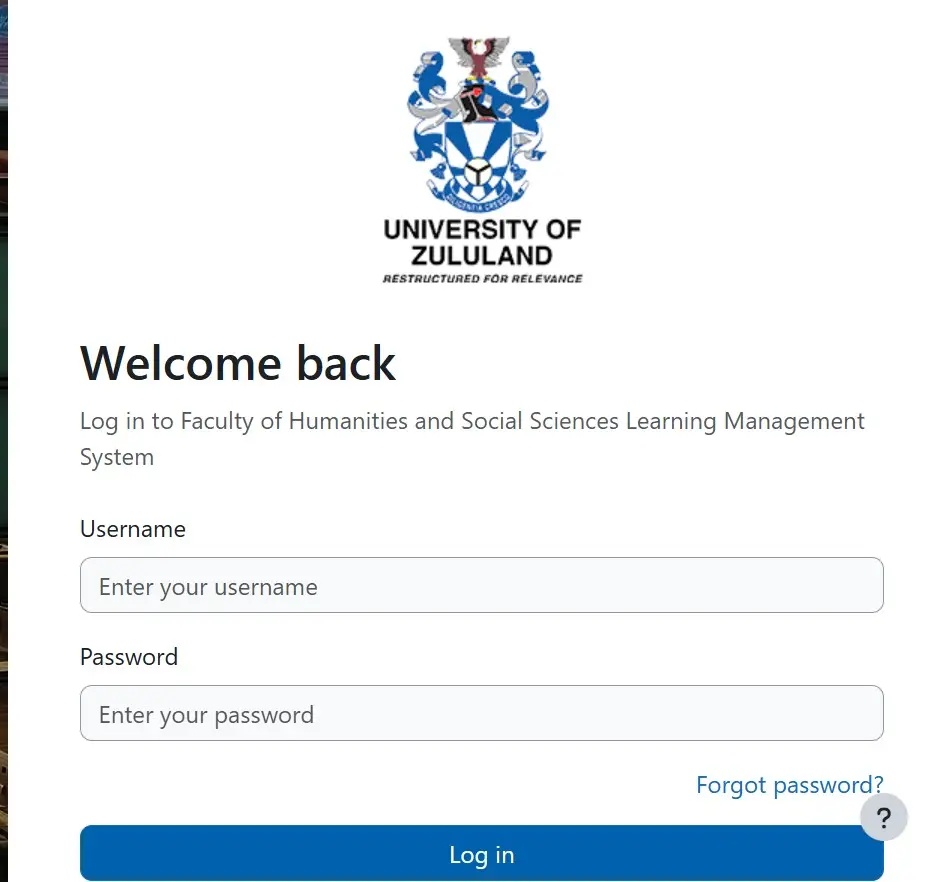
Step 4: Enter Your Student Number
Type your UNIZULU student number in the username field. The university’s published information lists the student number as the Moodle username, so do not add spaces or extra characters.
Step 5: Enter Your Password
Type your UNIZULU password. According to the university’s documentation, students sign in to the LMS with their student number and their AD password.
Step 6: Sign In
Click the login button. If your details are correct, you will land on your faculty dashboard, where your courses are listed.
How to Find Your Courses After Login
Once you are inside unizulu moodle, finding your modules is straightforward:
If you still cannot see a course, first confirm that you are on the right faculty page. Someone registered for a science programme will not find their modules on the education site. For example, a moodle faculty of science student who opens the education page will see nothing relevant. If the course is still missing after that, contact your lecturer, because enrolment on a course is often set up by the lecturer.
Moodle vs the Student Portal (iEnabler)
Many students confuse the two systems, so here is the difference:
| UNIZULU Moodle | Student Portal (iEnabler) | |
|---|---|---|
| Purpose | Online learning | Administration |
| What you do there | Read course materials, check announcements, complete activities | Register, update personal information, view academic information, make payments |
| Login | Student number and UNIZULU password | Student number and PIN |
| Official link | learn.unizulu.ac.za | Self Help iEnabler |
In short, use unizulu moodle for coursework and the iEnabler for anything to do with registration or fees. Your Moodle password will not work on the iEnabler, because the two systems use different credentials.
Quick Summary So Far
rafting content about UNIZULU Moodle for the faculty of science.
UNIZULU Moodle on Mobile
You can also use unizulu moodle on your phone or tablet through the official Moodle mobile app. The university’s published LMS guidance says students can download the app from Google Play or the Apple App Store.
To set it up:
The mobile app uses the same username and password as the website, so you do not need a separate account. Students on the sci moodle and every other faculty follow the same process. Only the site address changes.
UNIZULU Login Problems and Fixes
If your unizulu login fails, work through this checklist before contacting anyone:
If none of these steps work, the problem is usually with the account itself, and the ICT Student Desk needs to fix it.
Contacting the ICT Student Desk
UNIZULU’s published information directs students who did not receive their login details, or who need a password reset, to the ICT Student Desk:
Email: [email protected]
Include the following in your email so the desk can verify you:
Send the message from your university email address if you can. A UNIZULU Moodle notice on password and PIN requests asks for your student number and ID number in the message, so add both.
FAQ’s
Final Thoughts
For UNIZULU Moodle 2026, start at the official website, choose the faculty page that matches your programme, and sign in with your student number and UNIZULU password. Once you are in, you can reach your courses, announcements and learning materials from a computer or from the mobile app. Whether you use the moodle unizulu faculty of science page or the education page, the steps are the same. Keep the official links bookmarked and never enter your details on unofficial sites. If you get stuck, the ICT Student Desk at [email protected] is your first point of contact.FOR more information visit my HOME PAGE.