


Having trouble with tut login pages that no longer open? The problem may not be your student number or PIN. TUT uses several separate online systems, and many old links shared on third-party websites no longer lead to the correct service.The Tshwane University of Technology (TUT) student systems are divided according to their purpose. The Student Portal handles student services, iEnabler is used for application and registration-related functions, MyTUT or provides online learning resources, and Microsoft Outlook handles TUT student email.This guide brings these services together so you can identify the right TUT system without wasting time trying inactive or incorrect links.
What Is TUT Login 2026?
TUT Login 2026 is the online sign-in process that allows students at Tshwane University of Technology (TUT) to access the university’s student portal and online academic services. By using their TUT credentials, students can manage important tasks such as checking academic information, registration details, application or admission updates, and university announcements. The TUT student portal is designed to give students convenient access to essential services in one place, making it easier to manage their university-related activities online.If you want to know about TUT Status Check and Track Your Application Status Online CLICK HERE.

Which TUT Portal Should You Use?
TUT does not operate through a single website for every student service. Knowing which platform handles a particular task makes the tut login process much easier.
| TUT System | Main Purpose |
|---|---|
| TUT Student Portal | Student services and online functions |
| iEnabler | Application and registration status |
| Online Registration | Registration for current students |
| MyTUTor | Learning materials, assignments and tests |
| TUT Email | Official student email through Outlook |
| Bus Registration | University bus registration |
The TUT Student Portal is intended for current students and alumni and provides access to various student-facing services. You can use it for functions such as online queries and bus registration.
iEnabler is separate from the Student Portal. It is used for academic administration, including checking application or registration information.
MyTUTor is TUT’s learning management platform. Lecturers use it to provide course materials, notes, assignments and tests.
TUT student email is hosted through Microsoft Outlook, so email access takes place outside the main student portal.
TUT Login Details You Need
Your student number is the main identifier used across several TUT systems. You can find it on your admission letter or acceptance communication from the university.When accessing a tut login portal, make sure you use the credentials required by that particular service. Some systems require your student number and PIN, while your TUT email requires your full student email address and network password.If you cannot remember your student number, TUT provides an application-status facility where you can enter your South African ID number. Applicants who used a non-South African ID may instead need to provide their full name and date of birth.For more information visit my Home Page.
How to Access the TUT Student Portal
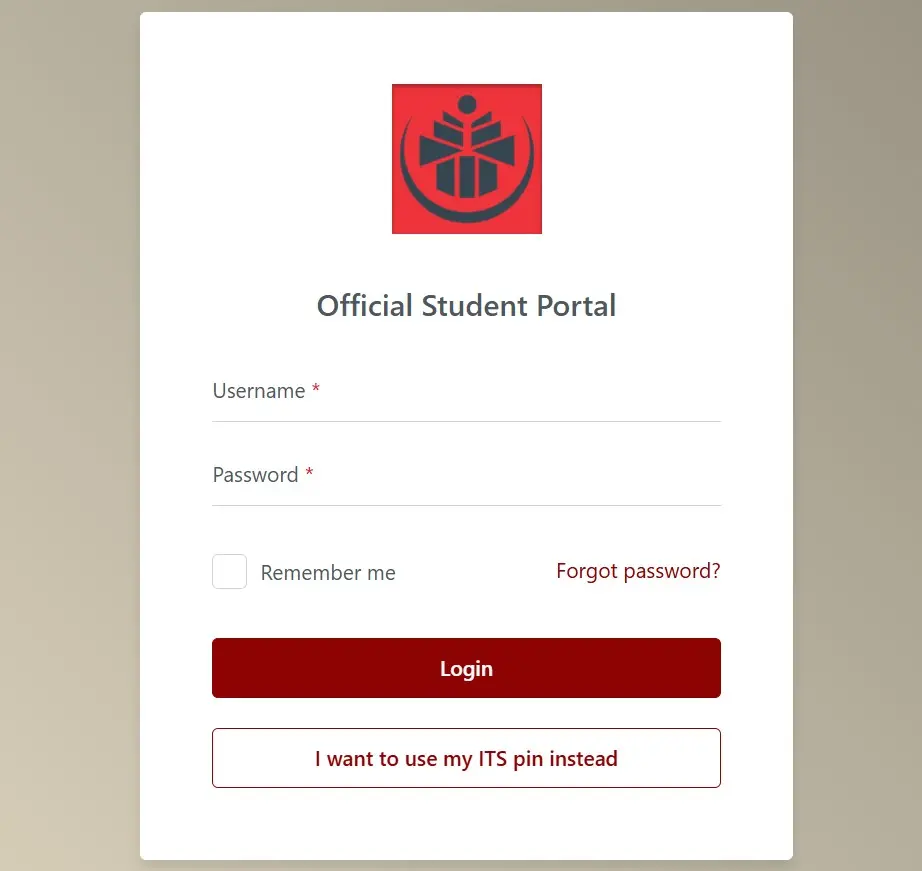
For the tut student portal login, use the official Student Portal rather than an old shortcut found on another website.
Official TUT Student Portal:
https://os.tut.ac.za/StudentPortal/Login
Enter your student number and PIN, then select the login option.Once inside the portal, you can access various student services. These include online queries and the university bus registration service. The portal also provides links to other TUT systems where applicable.If the page does not load, first check that you are using the complete official address rather than a shortened or outdated URL.
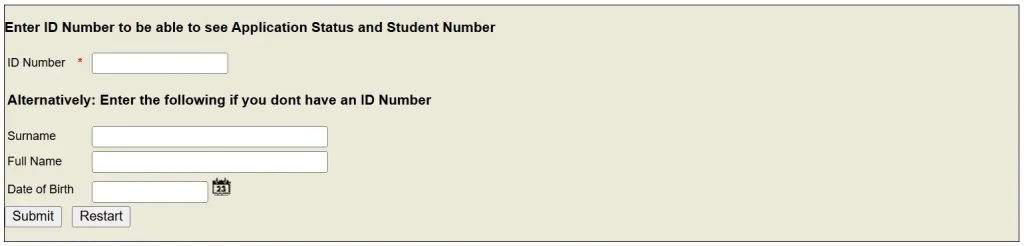
TUT iEnabler Login for Application Status
Students and applicants looking for tut login status information should use the official iEnabler address rather than the short iEnabler domain.
Application and Status Check:
https://ienabler.tut.ac.za/pls/prodi41/wtut012pkg.startup
Enter your South African ID number in the relevant field and submit it. Once your application has been processed, the system can display your application or registration status together with your student number.The short address ienabler.tut.ac.za should not be relied upon by itself because it does not resolve to the required status-check page correctly.This is particularly useful if you are trying to find your student number after applying to TUT.
TUT ITS Login and Online Registration
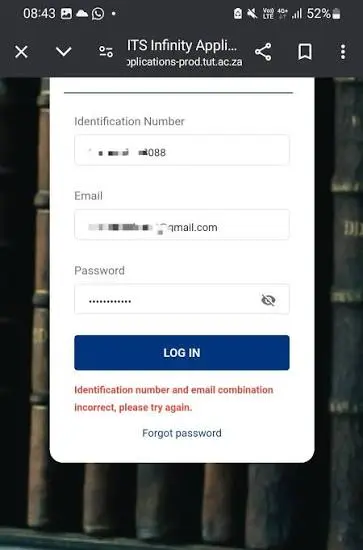
A tut its login search can refer to TUT’s academic administration systems, but online registration uses a separate registration address.
Official Online Registration:
https://staffienabler.tut.ac.za/pls/prodi41/w99pkg.mi_login
Current registered students should enter their student number and PIN to access the registration system. Follow the instructions displayed after signing in and complete the relevant registration stages.Remember that online registration and application-status checking are not necessarily accessed through the same page. If you are checking an application rather than registering for courses, use the iEnabler status-check address instead.
What If Your PIN Does Not Work?
If your PIN has expired or you have never created one, you may need to reset it before continuing. TUT’s student portal provides password or PIN reset functionality.Scheduled ITS maintenance can temporarily affect systems such as iEnabler, the Student Portal and password-reset services. If several TUT systems suddenly stop working at the same time, check the university’s official website for a maintenance notice before assuming your account is at fault.
Accessing MyTUTor for Learning
MyTUTor is TUT’s online learning environment. It is where students can access course-related resources supplied by their lecturers, including learning materials, assignments, notes and tests.
Official MyTUTor page:
https://www.tut.ac.za/mytutor-home/
You can reach MyTUTor through the TUT website by selecting “I am a Student” and then choosing myTUTor from the available options. Sign in with your TUT student credentials when prompted.Mozilla Firefox and Google Chrome are recommended when accessing the platform. If MyTUTor displays incorrectly or you encounter a login problem, trying one of these browsers is a useful first troubleshooting step.
Subjects Missing From MyTUTor?
Newly registered students may not see their subjects immediately. The source information notes that the system can take up to 48 hours to synchronise after registration.If your subjects are still missing after 48 hours, contact the MyTUTor service desk:
Email: [email protected]
Telephone: 012 382 4427
TUT Email Login Through Outlook
TUT student email is hosted by Microsoft Outlook. Instead of using the Student Portal to open your inbox, go directly to:
TUT Email:
https://outlook.office.com/mail
Sign in using your full TUT email address and TUT network password. Student email addresses follow this format:
Your TUT mailbox is important because the university uses it for official communications. Messages may include registration information, examination notices, financial communication and faculty announcements.Check this inbox regularly, particularly around registration and examination periods.
TUT Login Problems: What Should You Do?
If your tut login fails, avoid immediately assuming that your account is blocked. First confirm that you are opening the correct system.
Try these basic checks:
System maintenance can temporarily make iEnabler, MyTUTor, the Student Portal and related services unavailable. During busy periods, especially around the start of a semester, pages may also respond more slowly.
TUT Contact Details
For a persistent technical or account issue, contact TUT directly.
General enquiries: 0861 102 421
General email: [email protected]
MyTUTor support: [email protected] / 012 382 4427
Cybersecurity concerns: [email protected]
Using the university’s official contact channels is preferable to relying on advice from unofficial social-media accounts.
TUT Online Security: What Students Should Know
Students should also take care when responding to messages that appear to come from TUT. The university has previously issued cybersecurity and scam-related notices and encouraged students to use strong, unique passwords, reset passwords regularly, enable multi-factor authentication where available, and remain alert to phishing attempts.Never provide your password or sensitive financial information simply because an email or message claims to represent TUT.If you receive suspicious communication requesting passwords, banking details or payment in exchange for accommodation or registration opportunities, report the matter to:
Final TUT Login Checklist
Before contacting support about a tut login problem, identify exactly which service you are trying to access.
Use the Student Portal for student services, iEnabler for application or registration status, Online Registration for registration, MyTUTor for learning activities, and Outlook for your TUT email.
The key URLs are:
Using the correct portal is often the first step towards solving a failed tut login. If the official system itself is unavailable, check for maintenance information or contact TUT through its official support channels rather than relying on an outdated third-party link.
FAQ’s
Conclusion
The TUT Login 2026 process provides Tshwane University of Technology students with easy to the TUT student portal and essential online services, including academic information, registration details, application or admission status, and important university notices. Students should ensure that they use the correct login credentials and keep their account information secure. If you experience login issues or forget your credentials, use the appropriate TUT support options to resolve the problem and continue accessing the portal without unnecessary delays.For more information visit my Home Page.