


The COIDA login process allows South African employers and authorised users to access the Compensation Fund’s online services for employer registration, Return of Earnings (ROE) submissions, assessments, and Letters of Good Standing. The online system is commonly accessed through the CFonline or ROE Online platform provided by the Department of Employment and Labour.COIDA refers to the Compensation for Occupational Injuries and Diseases Act, 1993 (Act 130 of 1993). The legislation establishes a compensation system for employees who suffer occupational injuries, diseases, disablement, or death arising from their work. The Compensation Fund administers important employer services connected with registration, ROE declarations, assessments, payments, and compliance.For employers, completing the COIDA login and keeping their CFonline profile up to date is an important part of maintaining compliance. The official Department of Employment and Labour website provides access to the ROE Online service, including Online User Registration, Employer Registration and ROE Submission, LOGS – Letter of Good Standing, and Letter of Good Standing verification.
What Is COIDA?
The Compensation for Occupational Injuries and Diseases Act (COIDA) provides a legal framework for compensation relating to occupational injuries and diseases in South Africa. The Compensation Fund, which operates under the Department of Employment and Labour, administers the system.In practical terms, COIDA is important because employees may be entitled to compensation when they suffer qualifying workplace injuries or occupational diseases. The system can also provide benefits in cases involving workplace-related disablement or death.Employers therefore have responsibilities that include registering with the Compensation Fund, submitting required Return of Earnings (ROE) information, paying assessments, maintaining appropriate records, and complying with the Fund’s requirements.The Department of Employment and Labour states that employers are required to register with the Compensation Fund, while annual ROE submissions form part of their ongoing obligations.The COIDA login itself does not create compliance. Instead, it gives an employer access to the online system through which important compliance-related activities can be performed.

COIDA and The DOL
The Department of Employment and Labour (DOL) plays an important role in South Africa’s employment and labour administration, including services related to the Compensation Fund and COIDA. Employers use the Department’s official online platforms to manage important requirements such as employer registration, submitting Returns of Earnings (ROE), checking compliance information, and accessing services related to a Letter of Good Standing.For employers, understanding the connection between COIDA, the Compensation Fund, and DOL can make online compliance easier. The Department provides official information and online services that help businesses meet their obligations under the Compensation for Occupational Injuries and Diseases Act.When accessing COIDA login or CFonline services, employers should always use the official Department of Employment and Labour website and its authorised online portals. This helps protect account information and reduces the risk of using unofficial websites that may provide outdated or incorrect information.DOL resources are particularly useful when an employer needs guidance about ROE submissions, employer registration, assessments, workplace injury reporting, or Letters of Good Standing. Keeping employer information up to date and completing required Compensation Fund submissions can help businesses maintain their compliance status.For more information visit my HOME PAGE .
COIDA Login: How to Access the CFonline Portal
If you already have an employer profile, the COIDA login process is generally straightforward.
Step 1: Open the Official ROE Online Page
Start from the official Department of Employment and Labour website rather than relying on third-party websites or unofficial login pages.
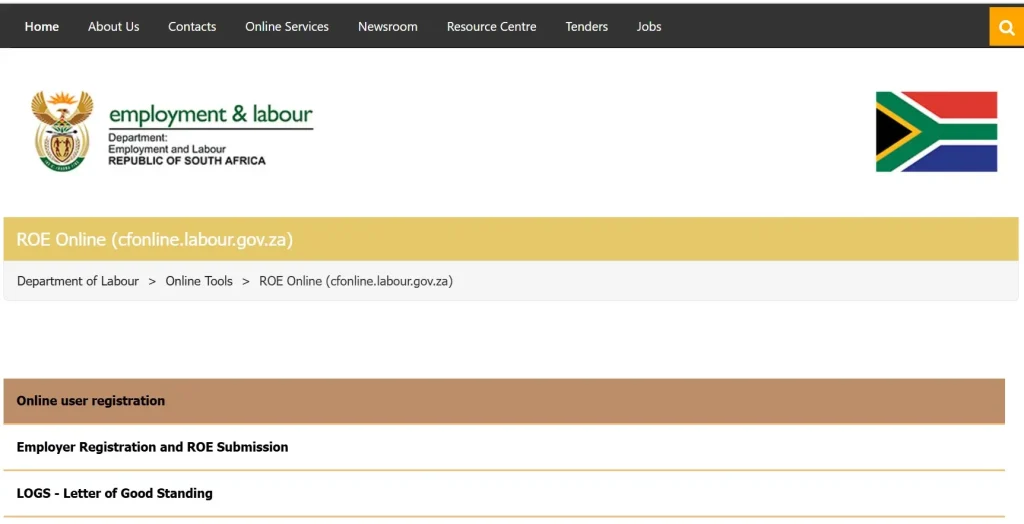
Open the official ROE Online (CFonline) page:
Official ROE Online / CFonline Page
The official page provides access to several Compensation Fund services, including employer registration, ROE submission and Letters of Good Standing.
Step 2: Open the CFonline Submission Portal
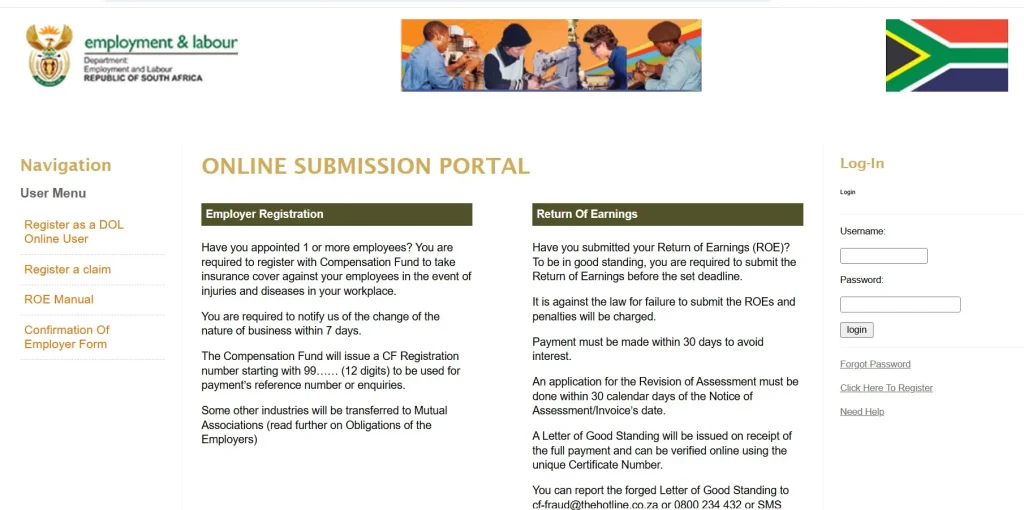
You can also access the online submission system directly:
CFonline Online Submissions Portal
This is the platform used for online Compensation Fund services.
Step 3: Enter Your Login Details
If you have already registered, enter your relevant username and password in the login fields.Make sure that you use the credentials associated with the employer or organisation’s registered CFonline profile.Do not share your password with other people. The CFonline privacy and security information specifically instructs users not to disclose usernames and passwords and warns against unauthorised access.

Step 4: Access Your Employer Dashboard
After successful authentication, you can access the functions available to your account.Depending on your profile and the services currently available to you, these can include employer-related registration information, Return of Earnings, assessment-related information and Letter of Good Standing services.If your login fails, check that you are using the correct credentials before attempting another login.
How to Register on CFonline Before Your COIDA Login
New employers cannot simply perform a COIDA login without first having the appropriate online registration.The Department of Employment and Labour’s ROE system provides an online registration facility for employers. The official user manual explains that employers can use the ROE website for employer registration, ROE submissions, online payments and retrieving a Letter of Good Standing.
Step 1: Visit the CFonline Portal
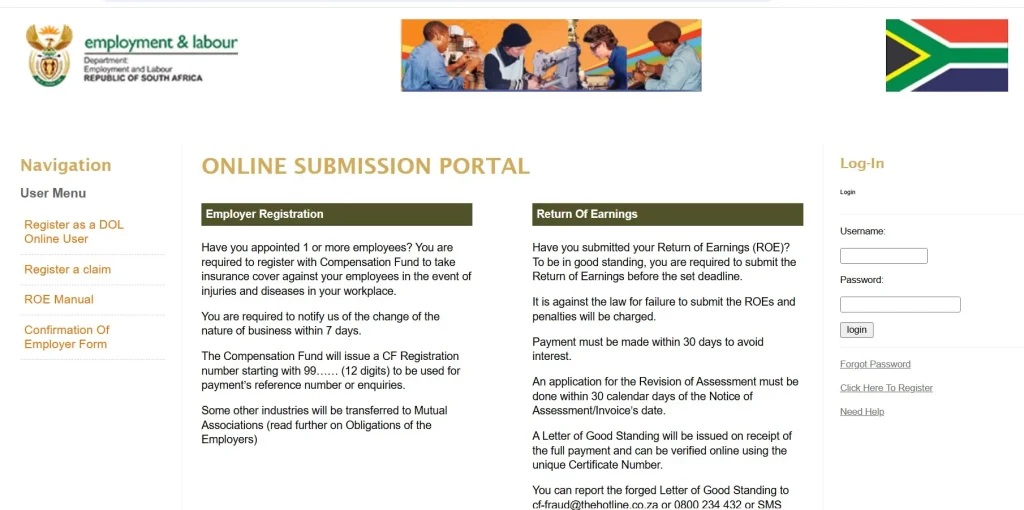
Go to:
Step 2: Select the Registration Option
Look for the applicable option to register an organisation or user.The exact screen wording can change as the Department updates the online platform, so follow the registration options currently displayed on the official portal.

Step 3: Provide Employer Information
You should have the relevant employer information available when completing registration.Depending on your employer type, this can include information such as:
A current Department of Employment and Labour employer-registration form identifies different employer types, including companies, trusts, sole proprietors, partnerships, joint ventures, body corporates, NPOs, public entities and domestic-worker employers.
Step 4: Confirm Your Registration
Complete the required verification or activation process provided by the system.Keep your registration information secure because you will need the appropriate credentials for future COIDA login attempts.
What Can You Do After COIDA Login?
The CFonline system is designed to provide employers with access to several Compensation Fund services.
The official ROE Online page lists the following key functions:
This means the COIDA login is useful for much more than simply checking an account.
Employer Registration
Employers can use the online system to register with the Compensation Fund and maintain their employer information.Registration is an important first step because employers need an appropriate Compensation Fund profile before completing other employer-related processes.
Return of Earnings Submission
Another major function is the submission of the Return of Earnings (ROE).Employers are required to submit ROE information annually. The Department’s guidance explains that the return includes information such as employer details, employee numbers, earnings during the relevant assessment period and the nature of the employer’s business.
Assessments and Payments
ROE information is used in the Compensation Fund’s assessment process. Employers should ensure that the information submitted is accurate and complete.Keeping payment records and checking account information regularly can help employers identify outstanding amounts or other compliance issues.
Letter of Good Standing
The CFonline system also provides access to Letter of Good Standing (LOGS) services.A Letter of Good Standing can be important when a business needs to demonstrate that it is meeting relevant Compensation Fund obligations, particularly for certain contracts, tenders or business arrangements.
How to Submit a Return of Earnings After COIDA Login
The Return of Earnings (ROE) is one of the most important services available through the Compensation Fund’s online system.The Department of Employment and Labour states that employers are required to submit ROE information annually.
Step 1: Log In to CFonline
First complete your COIDA login using your registered credentials.
Step 2: Open Employer Registration and ROE Submission
From the available services, locate the Employer Registration and ROE Submission section.The official ROE Online page specifically lists Employer Registration and ROE Submission as an available online service.
Step 3: Review Employer Information
Before submitting the return, check that your employer information is accurate.
Pay attention to:
Step 4: Enter Earnings Information
Provide the required employee and earnings information for the relevant assessment period.The Department explains that ROE information includes the number of workers employed during the assessment period and their earnings, subject to the applicable maximum earnings amount determined for the assessment period.
Step 5: Check the Information Carefully
Before submitting your ROE, review the information carefully.Incorrect payroll information, employee numbers or business information can create problems with assessment and compliance.
Step 6: Submit the ROE
Once the information has been reviewed, complete the online submission.Keep any confirmation, reference number or supporting documentation generated by the system for your business records.
Important ROE Compliance Dates
Employers should always check the latest Department of Employment and Labour instructions for the applicable submission period because administrative arrangements and deadlines can change.The Department’s published guidance states that employers are required to submit annual ROE information and has historically specified the relevant submission period and deadlines.The Compensation Fund has also continued to emphasise the importance of annual ROE submissions and payments. In a 2024 employer engagement, the Department stated that employers are expected to register with the Compensation Fund and submit the Return of Earnings every year.For the most current requirements, always check the official Department of Employment and Labour website rather than relying on an old deadline published elsewhere.
What Happens If an ROE Is Not Submitted?
Failing to submit required information can create compliance problems.The Department’s employer-obligations guidance states that failure to submit within the prescribed period can result in interest and penalties.For this reason, employers should not wait until they need a Letter of Good Standing before checking their Compensation Fund account.
A better approach is to:
This can make future COIDA login, ROE and Letter of Good Standing processes considerably easier.
COIDA Login Password Problems
If you cannot remember your CFonline password, look for the password-recovery or Lost Password option provided on the official login page.Use the recovery process associated with your registered account rather than creating multiple accounts.If your username and password combination is incorrect, the CFonline system can display an authentication error.
Before contacting support, check:
Avoid giving your password to another person. The CFonline privacy information specifically stresses the confidentiality of user credentials.
How to Get a Letter of Good Standing After COIDA Login
A Letter of Good Standing (LOGS) is an important document for many South African businesses. It can be requested when an employer needs to demonstrate that its Compensation Fund obligations are in order.After completing your COIDA login, you can access the relevant Letter of Good Standing service through the CFonline system.
Step 1: Log In to CFonline
Visit the official Department of Employment and Labour ROE Online page:Official ROE Online / CFonline page.You can also access the online submissions platform directly:CFonline Online Submissions Portal. Enter your registered login details and access your employer account.
Step 2: Open the LOGS Section
Once inside your account, look for the LOGS – Letter of Good Standing option.The available menu can depend on your account status and the services enabled on the system.
Step 3: Check Your Compliance Status
Before requesting a Letter of Good Standing, check whether your employer profile is up to date.
You should make sure that:
A Letter of Good Standing should not be treated as simply another document to download. It reflects an employer’s standing with the Compensation Fund.
Step 4: Request the Letter
If your account meets the applicable requirements, follow the on-screen instructions to request your Letter of Good Standing.Depending on the status of the account and the system’s current functionality, the document may become available electronically.
Step 5: Download and Keep a Copy
Once the Letter of Good Standing is available, download the document and keep a copy in your business records.If you are submitting it for a tender, contract or another business requirement, check that the document is still valid and meets the requesting organisation’s requirements.
Why Is a Letter of Good Standing Important?
A Letter of Good Standing can be requested in different business situations.For example, companies may need to provide proof of Compensation Fund compliance when:
The exact requirements can differ depending on the organisation requesting the documentFor that reason, employers should maintain their Compensation Fund account continuously rather than trying to resolve everything immediately before a tender or contract deadline.
How to Verify a Letter of Good Standing
The Department of Employment and Labour also provides a Letter of Good Standing verification facility.This can be useful when an organisation wants to confirm the validity of a Letter of Good Standing supplied by an employer.Go to the official ROE Online page:Letter of Good Standing services – Department of Employment and Labour.Look for the verification option and follow the instructions displayed by the official system.Businesses should avoid relying on screenshots or unofficial copies when verification is required. Where possible, use the Department’s official online verification service.
COIDA Assessments and Payments
Completing your COIDA login and submitting your ROE is only part of maintaining compliance. Employers must also pay assessments that become due to the Compensation Fund.The assessment is connected to information supplied by the employer, including earnings and the nature of the business.The Department of Employment and Labour explains that the Compensation Fund uses employer and earnings information in determining assessments.Because different industries have different levels of occupational risk, employers should provide accurate information about the nature of their business.
Why Accurate Information Matters
When completing an ROE submission, avoid estimating figures simply to complete the form quickly.Check your payroll and business records before submitting information.
Important information can include:
Incorrect information can lead to assessment discrepancies and may require the employer to correct or explain the submission.
How to Check Your COIDA Account
After your COIDA login, employers should regularly review their account instead of accessing it only when an annual ROE is due.Regular checks can help you identify potential issues earlier.
Look for:
Employer Details
Check whether your business name, contact information, address and other registration information are correct.
ROE History
Review previous Return of Earnings submissions and make sure the required returns have been submitted.
Assessment Information
Check assessment information and amounts that may be outstanding.
Payment Records
Where the portal provides payment or account information, review it against your own financial records.
Letter of Good Standing Status
If your business regularly requires a Letter of Good Standing, check your account well before you need the document.
Common COIDA Login Problems and Solutions
Sometimes employers may experience difficulties when trying to complete their COIDA login.The problem may be caused by incorrect credentials, account-registration issues, browser problems or a temporary technical issue.Here are some common situations.
1. Incorrect Username or Password
If the system does not accept your credentials, first carefully re-enter your username and password.
Check for:
If you have forgotten your password, use the recovery option provided by the official CFonline login system.Do not repeatedly create new profiles simply because you cannot log in to an existing account.
2. Password Reset Not Working
If the password recovery process does not work, make sure you are using the email address associated with the account.Also check your spam or junk folder if the system sends an email.If you no longer have access to the registered email address, you may need to contact the Department or Compensation Fund through the official support channels.
3. Account Registration Problem
If you are a new employer and cannot complete registration, carefully review the information you entered.Make sure your organisation details correspond with your official business records.
Common causes of registration problems can include:
If the system indicates that an employer already exists, avoid immediately creating another registration. The existing employer record may need to be investigated or updated.
What to Do If CFonline Is Not Working
A website problem does not necessarily mean that your employer account is incorrect.If you cannot access the COIDA login page, try these basic troubleshooting steps:
When contacting support, explain the exact problem rather than simply saying that the COIDA login does not work.
For example, state whether:
This makes it easier for the relevant support team to understand the issue.
COIDA Login vs ROE Online: What Is the Difference?
These terms can sometimes cause confusion.COIDA refers to the legislation governing compensation for occupational injuries and diseases.Compensation Fund refers to the government-administered compensation system associated with the legislation.CFonline refers to the online platform used for relevant Compensation Fund services.ROE Online refers to the Department’s online service for Return of Earnings and related employer services.Therefore, when people search for COIDA login, they may actually be looking for access to the CFonline/ROE Online system.Understanding these terms can make it easier to find the correct official portal.
COIDA Employer Responsibilities
Employers should understand that online access is only one part of their responsibilities.The Department of Employment and Labour provides guidance explaining that employers have obligations relating to registration, ROE submissions, assessments and other Compensation Fund requirements.
In general, employers should:
Employers should also remember that COIDA requirements can vary according to circumstances, so complicated cases may require professional advice or direct confirmation from the Department.
COIDA and Workplace Injuries
One of the main purposes of COIDA is to establish a compensation framework for employees who experience qualifying occupational injuries or diseases.If an employee suffers a workplace injury, the employer should follow the applicable reporting and claims procedures rather than assuming that an annual ROE submission is sufficient.The Compensation Fund provides information and services relating to occupational injuries and diseases through the Department of Employment and Labour.Employers should therefore maintain proper workplace incident records and ensure that responsible HR or administrative staff understand the applicable reporting process.
Tips for Employers Using CFonline
To make your COIDA login and Compensation Fund administration easier, consider following these practices:
Keep Your Login Information Secure
Do not share your password unnecessarily. Give authorised staff access through appropriate account arrangements.
Keep Payroll Records Ready
ROE submissions depend on accurate earnings information, so maintain organised payroll records throughout the year.
Don’t Wait for the Deadline
Start preparing your ROE information before the submission period.
Save Confirmation Records
After submitting information online, keep confirmation numbers, receipts or other records provided by the system.
Monitor Your Account
Regularly checking your CFonline account can help identify issues before they become urgent.
Check Your Letter of Good Standing Early
If you need a LOGS for a tender or contract, don’t wait until the final day to request it.
Is COIDA Login Free?
Accessing the online COIDA login or CFonline platform is different from the financial obligations associated with Compensation Fund assessments.Employers should distinguish between access to the online portal and payments owed to the Compensation Fund.Where an assessment is due, the employer remains responsible for paying the applicable amount according to the Compensation Fund’s requirements.Always use official Department of Employment and Labour information when checking current payment instructions, deadlines or requirements.
Official COIDA and CFonline Links
For safety and accuracy, employers should use official government websites when accessing Compensation Fund services.
Department of Employment and Labour – ROE Online:
Open the official ROE Online page
CFonline Online Submissions:
Open CFonline
Department of Employment and Labour:
Visit the official Department of Employment and Labour website
These should be your primary sources for checking current instructions and accessing Compensation Fund services.
FAAQ’s
Conclusion
The COIDA login gives South African employers convenient access to important Compensation Fund services through the CFonline platform. Once registered, employers can manage their employer details, submit Returns of Earnings (ROE), review assessment information, make required payments, and access services related to a Letter of Good Standing.Keeping your CFonline account information accurate and submitting your ROE on time can help you maintain good standing and avoid unnecessary compliance problems. If you experience login or account issues, use the official Department of Employment and Labour website and CFonline portal rather than relying on unofficial third-party websites.For the latest COIDA requirements, ROE instructions, payment information, and online services, always check the official Department of Employment and Labour resources. Staying organised and regularly checking your account can make the COIDA login process and ongoing Compensation Fund management much easier for your business.For more information visit my HOME PAGE
READ MORE