


The MUT Student Portal is the online platform used by students of Mangosuthu University of Technology to access important academic and registration services. Students can use the portal to log in, register for subjects, view their registration information, and obtain proof of registration.If you are looking for the MUT Student Portal login, www.mut.ac.za student portal, or information about student portal MUT login, this guide explains the online registration process step by step.
Note: The registration dates below relate to the 2026 academic year and should not be assumed to be the current registration dates. Always check MUT’s latest official announcements for updated dates and requirements.
MUT Student Portal Login
To access your student account, begin by visiting the official Mangosuthu University of Technology website at www.mut.ac.za.From the university website, select the Student Portal option and continue to STUDENT iENABLER. Select Student, then enter your student number and PIN.
The general login process is:
This is the basic MUT Student Portal login process for accessing the online student system.
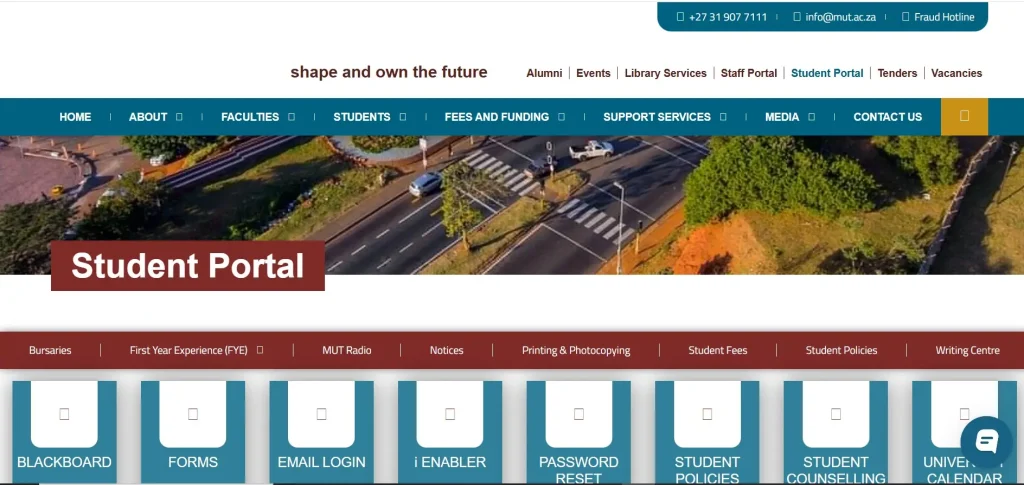
How to Access the www.mut.ac.za Student Portal
Students searching for the www mut ac za student portal can start from the official MUT website. The university website provides access to the Student Portal and other online services.After opening the MUT website, look for the Student Portal link and select STUDENT iENABLER. You will then be taken to the student login area.Make sure you enter your student number and PIN correctly. If your login information is not accepted, check your details before trying again.if you want to know about UP Login click here
How to Register Through the MUT Student Portal
Once you have successfully completed the student portal MUT login, you can access the registration section and submit your subjects online.
Open the MUT Website
Go to the official Mangosuthu University of Technology website at www.mut.ac.za.
Select Student Portal
Click the Student Portal link from the website to access the university’s online student services.
Open STUDENT iENABLER
Select STUDENT iENABLER from the available options.
Select Student
Click Student to proceed to the student login page.
Enter Your Student Number
Enter your assigned Student Number carefully. Check all the digits before continuing.
Enter Your PIN
Enter your student account PIN.
The original 2026 registration instructions stated that students who had not changed their PIN could use the default PIN 46579. If you had already changed your PIN, you needed to use your current PIN.
For security, students should follow the university’s current instructions rather than relying on an old default PIN.
Click Login
After entering your credentials, click Login to access your student account.

Start Your Online Registration
After signing in through the MUT Student Portal, locate Registration in the menu on the left side of the page.Click the registration option to begin the online registration process.
Review the Rules and Regulations
Open the Rules and Regulations section and read the information provided before continuing.
Accept the Rules
Scroll down and select I Accept to confirm that you have read and accepted the applicable rules and conditions.
Select Submit Registration
Return to the menu on the left and click Submit Registration.The system will then guide you through the remaining registration stages.

Select Your Employment Status
During the registration process, you may be asked to provide your employment status.Choose the option that accurately describes your current situation. For example, if you are not employed, select UNEMPLOYED.After making your selection, click Save and Continue.
Select Your Subjects
The portal will display the subjects or modules available for your programme.Review the list carefully and select the subjects you are eligible to take. Tick the appropriate boxes next to the subjects you want to register for.After making your selections, click Save and Continue.
Confirm Your Registration
Continue through the registration screens and review your information before final submission.When everything is correct, select Accept Registration to confirm your course or subject choices.Take your time at this stage because it is important to ensure that the subjects shown on your registration are correct.
Get Your Proof of Registration
After successfully completing your registration, return to the menu on the left side of the MUT Student Portal.Select Proof of Registration.You should then be able to view your registration information and print or save your proof of registration for your records.Keep this document in a safe place because it may be useful when dealing with university administration or other student services.
MUT Student Registration Dates
The registration period included in the original 2026 notice was:
27 January – 7 February 2026
These dates applied to the 2025 academic year. Registration dates can change each year, so students should confirm the current dates directly through MUT’s latest official announcements.Do not assume that the 2026 dates apply to a later academic year.
Student Card Activation
Completing online registration does not necessarily mean that every student service is activated remotely.According to the original 2026 instructions, student card activation was completed on campus. Students were advised to visit the appropriate student services desk after arriving at the university.Keep your proof of registration and other relevant student information available when visiting campus.

Why Use the MUT Student Portal?
The MUT Student Portal makes several student processes easier by providing online access to important academic services.
Convenient Registration
Students can complete the available registration steps online instead of completing every stage physically on campus.
Subject Selection
The portal allows eligible students to view and select subjects or modules available for their programme.
Proof of Registration
After completing registration, students can access their proof of registration through the portal.
Easy Account Access
The MUT Student Portal login gives students a central place to access available online student services.
What to Prepare Before MUT Registration
Before starting your registration, make sure you have:
It is also a good idea to review the registration information before submitting anything.
Common MUT Student Portal Login Problems
Students may occasionally have difficulty accessing their accounts.
Incorrect Student Number or PIN
Double-check your student number and PIN. Make sure there are no typing errors.
Portal Not Loading
If the portal does not load correctly, check your internet connection and try refreshing the page. You can also try another browser or device.
Registration Information Is Incorrect
If your programme, subjects, or personal information appears incorrect, contact the appropriate MUT student support office before completing your registration.
Forgot Your PIN
If you cannot remember your PIN, use the university’s current account recovery or student support process rather than repeatedly entering incorrect information.
Tips for Successful Online Registration
To make the process easier:
FAQ’s
Final Thoughts
The MUT Student Portal provides Mangosuthu University of Technology students with online access to registration and other student services. Whether you need the MUT Student Portal login, are searching for the www.mut.ac.za student portal, or want to understand the student portal MUT login process, the steps above can help you navigate the system.For registration, always verify the latest dates, requirements, fees, and portal instructions from MUT because these details may change between academic years.
READ MORE
[…] If you want to access your student account, begin with the official college website rather than using an unfamiliar third-party login page.Open the official Vhembe My Access page and look for “Click Here To access Student iEnabler.” The college’s current portal page displays this option alongside its other online services. (vhembecollege.edu.za)Open Vhembe My AccessOnce you select the Student iEnabler option, you are taken to Vhembe TVET College’s official iEnabler system.Official Vhembe Student iEnabler LoginThe current iEnabler login page provides separate options for Student, Personnel, Other and Alumni users. For a normal student account, select Student and provide your student number and PIN. The live page specifies that the PIN is a 5-digit numerical PIN and should not start with 0. (ienabler.vhembecollege.edu.za).If you want to know about MUT Student Portal click here […]